Start here: name the symptom and protect the evidence
A PC that will not turn on, a PC that powers on with no picture, a random restart, a slow SSD and a laptop that runs hot need different diagnostic routes. Write down what the machine does, which indicators appear, the last stage reached during startup, and whether the problem began after a drop, firmware change, component upgrade, update or cleaning.
If a drive disappears, reports repeated read errors, or contains the only copy of important files, prioritize backup and data recovery decisions over stress tests or repeated repair attempts. Do not reset or reinstall Windows to troubleshoot a device that has not yet been shown to be healthy.
Desktop and laptop repairs can involve dangerous electrical energy, hot components and lithium-ion batteries. Never open a power supply. Disconnect external power before any work permitted by the manufacturer, do not puncture or bend a battery, and leave internal electrical or battery work to a qualified technician if you are not equipped to do it safely.
| Symptom | First question | Follow the focused guide |
|---|---|---|
| No lights or signs of power | Does the outlet, charger or external power path work? | Laptop will not turn on |
| Fans or lights start, but there is no picture | Does the monitor and signal path work, and does the PC reach firmware? | PC powers on but has no display |
| Random restart or shutdown under load | Does it correlate with temperature, load, hardware change or an error event? | PC power-supply symptoms |
| Blue screens, app crashes or instability after a memory change | Does the issue repeat with default memory settings and a memory test? | Check RAM for errors |
| Drive disappears or Windows cannot find it | Is the SSD detected in firmware, and is the data backed up? | SSD not detected in BIOS or Windows |
| Storage slows down or reports warnings | What do supported health fields and free-space readings show? | Check SSD health |
| Performance drops after the device warms up | Do clocks, fan behavior and temperature change with the slowdown? | Check GPU overheating |
| You want more memory or storage | What does the exact model support, and is the limitation measured? | Check laptop NVMe upgrade compatibility |
Separate power, firmware, operating system and component faults
The failure stage helps prevent unnecessary replacements. If the computer shows no sign of power, investigate the external power source, adapter or PSU path, battery state and manufacturer-specific indicators before blaming Windows. If it reaches the manufacturer logo or firmware setup, the machine has passed some early power and display checks, though it can still have a hardware fault.
A crash inside Windows does not prove that Windows is the root cause. Memory instability, a storage failure, cooling problems, a graphics driver, power delivery or one defective component can all produce software-visible symptoms. Conversely, a slow application can be caused by normal workload, background activity or configuration rather than failed hardware.
Look for a repeatable relationship: only under GPU load, only after warming up, only after sleep, only with one DIMM, only after an upgrade, or across several operating systems and applications. A good diagnostic test changes one condition and asks a specific question.
- No power before firmware: investigate the external power path, battery/adapter or PSU signs, and manufacturer-specific indicators.
- Power with no image: check display input, cable, output port, memory seating only if safely accessible, and whether firmware appears.
- Failure only inside Windows: compare Safe Mode, recent drivers, event timing and device health; do not assume a reset will fix hardware.
- Failure across several unrelated applications or boot environments: move shared hardware, temperature, memory and power higher on the list.
- Failure only after adding a component: verify compatibility, installation, power connectors, firmware support and default/stable settings.
Power, startup and display problems
Power-on failures can originate in the outlet, adapter, battery, power button, PSU, motherboard, internal power connections or a shorted component. Use the device maker’s external reset and adapter checks where documented. Avoid opening a power supply or probing live circuits.
A PC that powers on with no picture is a different symptom. Confirm the monitor input, cable and display output, then note whether any manufacturer logo or firmware screen appears. A screen that works in firmware but goes blank when Windows loads may need a graphics-driver or display-configuration investigation rather than immediate hardware replacement.
Unexpected shutdowns under gaming or rendering loads are not enough on their own to condemn the PSU. Record the exact timing, temperatures, clock behavior, recent hardware changes, event records and whether the problem occurs in more than one workload. A PSU should be assessed against the connected hardware’s documented power and connector requirements.
Storage diagnosis: health, detection, temperature and free space
Storage problems need a backup-first approach. If a drive repeatedly disappears, reports read errors, produces file corruption or is no longer detected in firmware, stop unnecessary benchmarks and protect important data before further experiments. A single healthy status field is not a guarantee that all parts of the storage path are fault-free.
On supported Windows devices, SMART-related values or storage reliability counters can expose temperature, wear or error information, but the driver and controller determine which properties are available. Missing values are not proof of health, and raw vendor-specific attributes should not be compared as if every SSD used the same scale.
Performance can also suffer when an SSD is nearly full, handles sustained background I/O, runs hot or is limited by the workload. These situations need different responses from a drive that is failing. Check actual free space and the timing of the slowdown; do not replace a drive solely because one benchmark score looks lower than expected.
| What you see | Check next | Focused guide |
|---|---|---|
| SSD disappears from Windows or firmware | Confirm detection stage and protect data; inspect approved diagnostics | SSD not detected |
| Health tool warns or read errors recur | Back up first and compare model-supported health fields | Check SSD health in Windows |
| NVMe drive runs hot or slows under sustained work | Compare the right sensor with model limits and cooling behavior | NVMe SSD temperature |
| System drive is nearly full | Check actual free space, temporary data and workload before upgrading | SSD nearly full |
| SSD is slower than before | Inspect background activity, free space, temperature, health and link configuration | Why an SSD may slow down |
RAM diagnosis: capacity is not the same as reliability
Low available memory during a real workload can cause more paging and slow application switching, but high memory use by itself does not prove the RAM is faulty. Check which applications use memory, whether the system is under pressure, and whether the slowdown coincides with disk activity.
Memory errors are a different class of evidence. Repeated test errors, blue screens after a memory change or instability that follows one module or configuration deserve stability testing. XMP and EXPO profiles apply settings beyond basic defaults; if instability begins after enabling a profile, compare with the default configuration before deciding the DIMM is defective.
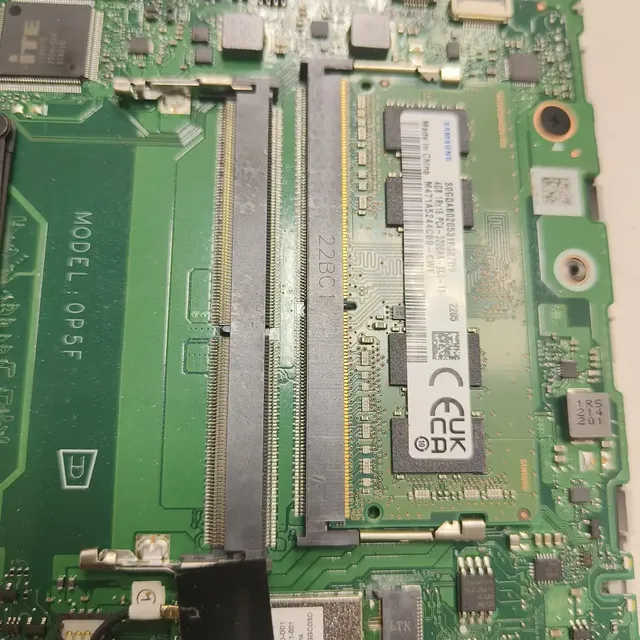
For a RAM upgrade, verify the supported DDR generation, module type, slot layout, maximum supported capacity and platform behavior. DDR4 and DDR5 are not interchangeable. Laptops may have soldered memory, accessible modules or a combination, so general advice cannot establish upgradeability without the exact model.
Thermals, cooling and power delivery
Temperature readings depend on the sensor and model. CPU package, GPU core, GPU hotspot, memory junction and SSD controller temperatures are different measurements and should be interpreted against the device’s documentation. Capture the temperature and clock trend during the actual symptom rather than diagnosing from an idle screenshot.
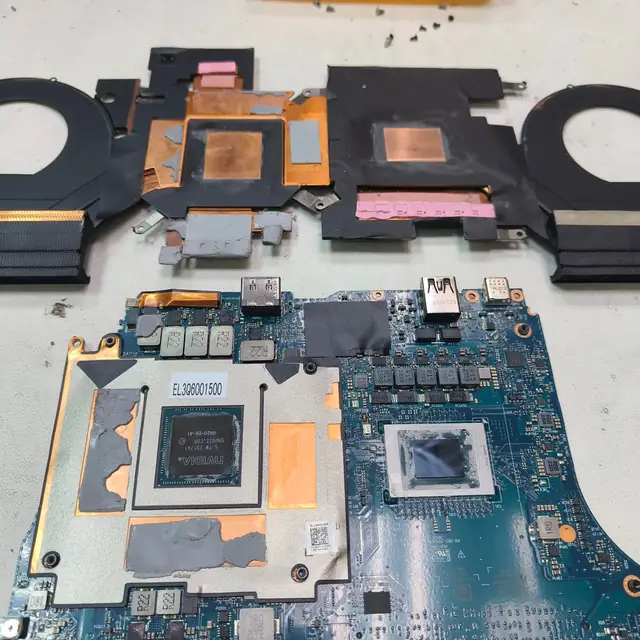
If the system slows only after several minutes, inspect airflow, fan behavior, heat sinks, the laptop power profile and any clock or power-limit changes that coincide with the drop. Cleaning and repasting are not automatic first steps; they involve risk and should be guided by the exact system design and evidence.
Power-delivery symptoms overlap with thermal and stability problems. Repeated restarts, shutdowns under load or black screens after a GPU upgrade can have several causes. Check approved power connectors, the PSU or adapter specification, motherboard guidance and recent changes. Never open a PSU, and do not rely on a generic wattage calculator as proof that a real configuration is stable.
Compatibility checks before buying or replacing components
Compatibility is more than whether a part physically fits. Verify the exact model or motherboard revision, supported interface, firmware/BIOS requirements, cooling clearance, power connectors, maximum supported capacity and the intended workload. Laptop families often have visually similar configurations with different internal layouts.
For storage, distinguish M.2 physical size from the interface supported by the slot: not every M.2 slot supports both SATA and PCIe/NVMe, and not every laptop supports every drive length or capacity. For RAM, confirm the DDR generation, physical format, platform support and whether memory is soldered. For a GPU, check case length and thickness, slot clearance, connector requirements, PSU capability and the display outputs you need.
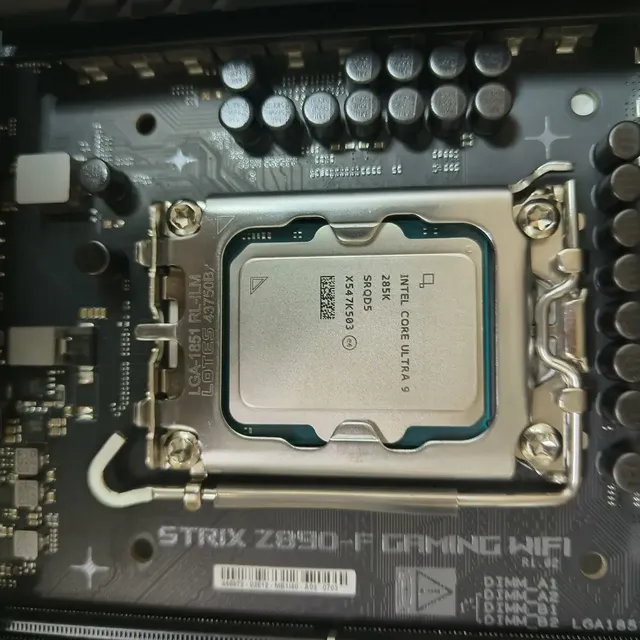
For CPUs, confirm the socket, chipset and BIOS support, power/thermal design and cooler compatibility. A compatible socket alone does not guarantee that a motherboard firmware version supports a given CPU. Use the manufacturer’s specification and support pages for the exact revision before ordering a part.
| Component | Confirm first | Helpful next step |
|---|---|---|
| RAM | DDR generation, DIMM/SO-DIMM, soldered slots, capacity and supported speed | RAM capacity for gaming |
| Laptop SSD | M.2 length, SATA versus PCIe/NVMe, slot support, capacity and access limits | Laptop NVMe upgrade compatibility |
| Laptop upgrade | Exact model suffix, soldered RAM, free slots, warranty and service manual | Check whether a gaming laptop is upgradeable |
| GPU | Case clearance, slot thickness, power connectors, PSU requirements and monitor output | Use the PC bottleneck calculator |
| CPU | Socket, chipset, BIOS version, memory support, power and cooling requirements | Browse CPU profiles |
Choose the least destructive diagnostic order
The most efficient diagnosis narrows uncertainty with a small number of meaningful tests. Do not run every stress test simply because a PC seems slow or crashes. A failing drive, unstable power path or marginal cooling system can be made harder to diagnose—or risk data—by an inappropriate workload.
- Record the symptom, exact model, operating conditions, recent changes and any error code.
- Check external power, cables, monitor input, free storage space and visible warnings first.
- Run the manufacturer’s supported diagnostic tools and operating-system evidence tools relevant to the symptom.
- Test a single hypothesis at a time, returning settings to a stable default when an experiment adds instability.
- Protect data before extended stress tests or invasive repair when a storage or stability warning exists.
- Confirm component compatibility against the manufacturer’s exact model documentation before buying replacements.
- Escalate to qualified service for internal PSU work, swollen/damaged batteries, burning smell, liquid damage or repairs beyond your equipment and experience.
Frequently asked questions
The correct answer depends on the exact component, configuration and symptom. Use these distinctions to choose a safer next check.
- A healthy SMART status does not guarantee that a drive, cable, controller or the wider storage path is fault-free.
- High CPU, GPU or RAM usage is not automatically a fault; compare it with the workload and the symptom.
- A random restart does not by itself prove a defective PSU. Check event timing, thermals, memory stability, connections and recent hardware changes.
- Laptop upgradeability cannot be confirmed from the brand or product family alone; use the exact model and service documentation.
- A component replacement should follow evidence and compatibility checks, not one temperature, benchmark or error entry.
This is a symptom-led diagnostic reference, not a claim that every listed part has been physically bench-tested by TWW. SMART fields, temperature sensors, firmware options and upgrade support vary by model. Follow the manufacturer documentation for the exact device and use qualified repair support where work involves electrical or battery safety.
See the evidence behind this topic
These TWW research pieces examine the measurements, mechanisms, or testing questions related to this guide. Research pages distinguish measured results from general technical guidance.
- Does More RAM Actually Make Windows Faster? What to Measure Before UpgradingYes—when memory capacity is the bottleneck. If Windows already has enough memory for the workload, adding more RAM may make little or no measurable difference.
- What Really Changes When an SSD Gets Nearly Full?A nearly full SSD is not automatically a failing SSD. The useful question is which workload changed and what storage evidence changed with it.
Sources & further reading
Frequently asked questions
How do I start diagnosing a PC hardware problem?
Record the exact symptom and recent changes, then identify whether the PC fails before firmware, during startup or only under a particular workload. Use the least disruptive test that can separate the likely causes, and protect data before stressing a drive that reports warnings.
Does a healthy SSD status mean the drive is definitely fine?
No. Available health fields vary by device and driver, and a reported healthy status does not prove that the drive, cable, controller and entire storage path are fault-free. Combine supported health data with symptoms and back up first if errors or disconnects recur.
Can I use a generic guide to confirm laptop RAM or SSD compatibility?
A generic guide can explain what to check, but compatibility depends on the exact model suffix, board layout, supported memory generation, soldered slots, SSD interface and length, firmware and service limitations.
Should I replace the PSU if my PC restarts during a game?
Not on that symptom alone. Overheating, GPU behavior, connectors, motherboard issues and RAM instability can overlap with PSU symptoms. Record when the restart occurs and use safe, model-specific diagnostics; never open a PSU.
What should I do if an SSD disappears or reports repeated errors?
Stop unnecessary stress tests and prioritize a verified backup or professional data-recovery advice if the data is important. Check the supported health data and detection stage before attempting repairs that write to the drive.
When should I stop and get professional hardware service?
Stop when the task involves internal PSU work, a swollen or damaged battery, liquid damage, burning smell, live electrical testing or a repair that exceeds your tools and experience. Do not risk injury or valuable data to complete a diagnostic.
We distinguish documented facts, measured results, and informed guidance. If a claim depends on a specific device, software version, game, or test method, that context should be stated rather than implied.
Meet the author·See our testing methodology·Read our editorial policy