What should you do before buying?
Answer three quick questions for a next step based on the problem you are actually experiencing. This does not scan your PC, confirm compatibility or predict future prices.
Collect evidence before choosing the part.
“My PC feels slow” does not identify RAM or storage as the cause. Buying a part before locating the limit can spend money without solving the symptom.
- Record what you were doing, when the slowdown starts, and whether it repeats.
- During the symptom, check Task Manager memory and the active disk process/throughput; also watch CPU, temperature and background activity.
- Use the focused guide that matches the measurement, then compare the same workload after any change.
This is a rule-based decision aid, not a hardware diagnostic, price forecast, medical/safety assessment, or compatibility lookup. Drive-error selections prioritize data protection.
The quick answer: buy for a measured problem, not for a headline
The strongest reason to upgrade RAM or an SSD is that a confirmed limitation is repeatedly affecting something you need to do. The strongest reason to wait is that the PC is stable, the upgrade is optional, the exact compatible part is not yet clear, or the likely benefit has not been measured.
Those two rules remain useful even in a volatile market. Higher supplier costs do not prove that every retail module or drive is good value today, and a forecast of lower demand does not guarantee that a particular part will be cheaper next month. Price headlines are context; they are not a diagnosis of your PC.
Use this page to decide which problem you have, what evidence to collect, and when to stop shopping and fix the actual limitation. The RAM and storage calculators linked below help with planning capacity; they do not detect a fault or verify a part against your exact model.
The October 2026 market snapshot—and what it does not say
The market signals are unusually strong, but the measures are not interchangeable. TrendForce’s 30 September 2026 outlook projected conventional DRAM contract prices to rise 10–15% quarter over quarter in Q4 2026 and NAND flash contract prices to rise 15–20%. These are supplier-contract forecasts for memory components—not a promise that every retail RAM kit or consumer SSD will rise by the same amount.
A separate consumer-listing tracker, MemRadar, published a September 2026 record frozen on 12 October. Across the tracked products that appeared in both comparison months, it reported median same-product price changes of +406% for 61 DDR5 kits, +172% for 28 DDR4 kits, +152% for 66 NVMe SSDs and +156% for 27 SATA SSDs versus September 2025. Its catalog was assembled in July 2026 and reflects tracked Amazon listings; those percentages are not a global retail index, not a comparison of every available part, and not a forecast of what a buyer in every country will pay.
Gartner reported on 12 October that global PC shipments fell 22.4% year over year in Q3 2026, and said higher memory and storage costs were reflected in PC pricing. Shipment volume is useful market context, but it is not a direct measure of the price or availability of a specific RAM module or SSD.
For a buyer, the defensible conclusion is limited but useful: supplier costs and some tracked retail listings have been under pressure, so compare the exact compatible products and do not assume that waiting will automatically save money. Regional taxes, currency, warranty, shipping, stock, retailer pricing and the specific model can outweigh a broad index.
| Signal and source date | Published figure | How to interpret it |
|---|---|---|
| TrendForce component contracts · 30 Sep 2026 forecast | Conventional DRAM: +10–15% QoQ; NAND flash: +15–20% QoQ in Q4 2026 | Component-contract forecast, not a retail price quote or guaranteed rise for a particular product. |
| MemRadar tracked consumer listings · Sep 2026 record frozen 12 Oct | Median same-product change vs Sep 2025: DDR5 +406% (61 kits); DDR4 +172% (28 kits); NVMe SSD +152% (66 drives); SATA SSD +156% (27 drives) | A defined sample of tracked Amazon listings. The sample is not worldwide and should not be treated as a fair price for every kit or drive. |
| Gartner global PC shipments · 12 Oct 2026 | Q3 2026 PC shipments down 22.4% year over year | Market-wide shipment volume is not a promise that parts will be cheaper at retail. |
- Do compare like-for-like parts: capacity, generation, interface, physical size, warranty and local landed cost.
- Do not compare component-contract forecasts directly with one shop’s retail price or one tracked listing sample.
- Do not postpone a data-risk response because market prices are high.
Use this decision order before spending
A useful upgrade decision has four gates. If a gate fails, stop and resolve it before ordering hardware. The aim is not to buy the newest component; it is to make the smallest reliable change that solves the verified problem.
| Gate | Question | If the answer is no |
|---|---|---|
| 1 · Evidence | Can I reproduce the problem and connect it to memory capacity or storage? | Measure first. Do not assume that a generally slow PC needs more RAM or a faster SSD. |
| 2 · Need | Does the problem materially affect work, school, gaming, or data safety? | If the machine is stable and the upgrade is optional, compare prices and revisit the decision later. |
| 3 · Compatibility | Have I checked the exact laptop or motherboard model, supported capacity, form factor and interface? | Do not order yet. Use the model’s service manual and official specification sheet. |
| 4 · Value | Will the part solve the measured limitation at a price I can justify? | Try a low-risk workaround, compare another compatible part, or save the money until the benefit is clearer. |
When more RAM is the right upgrade
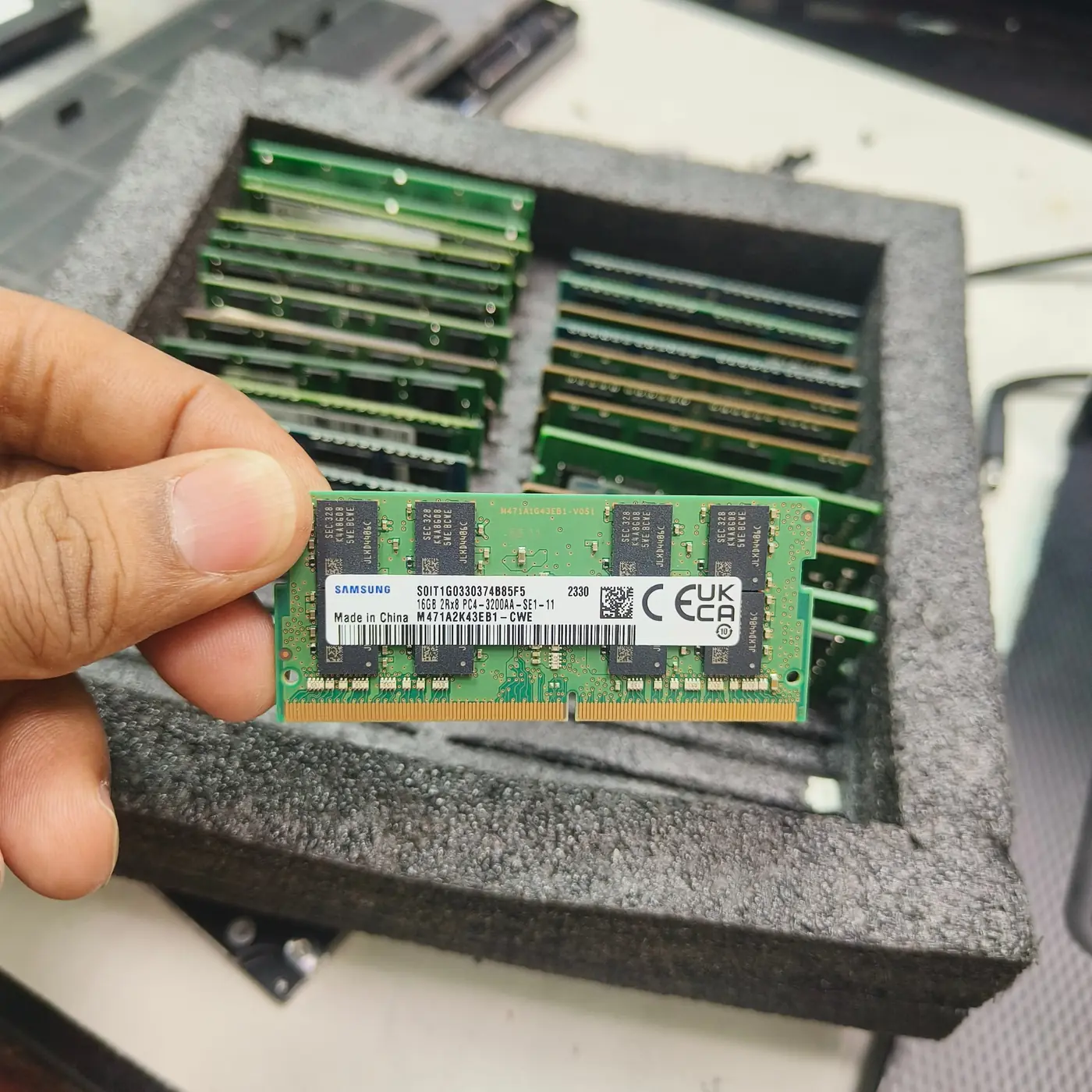
RAM capacity is a strong suspect when slowdowns happen mainly during your normal multitasking workload and the measurements show genuine memory pressure. Examples include the browser and work applications becoming sluggish together, app switching pausing while data is paged to storage, or the workload becoming responsive again after high-memory applications are closed.
High RAM use alone is not proof. Windows uses memory for applications and cache, and the percentage can be high while the system remains responsive. Record installed memory, in-use memory, committed memory and the applications active at the moment of the slowdown. Repeat the same workload rather than relying on one idle snapshot.
If the evidence points to insufficient capacity, compare the capacity you actually need with the supported upgrade. A move from 8GB to 16GB can make a meaningful difference for some multitasking workloads; other users may need more, while a machine whose memory use is comfortably below capacity may gain very little. There is no capacity that guarantees faster performance in every app or game.
- Open Task Manager with Ctrl+Shift+Esc and record Memory while reproducing the real slowdown.
- Check whether committed memory, paging and responsiveness change together; note which applications consume memory.
- Repeat with only one or two known high-memory applications closed. If the symptom improves consistently, memory pressure is more plausible.
- Use the RAM Calculator as a planning aid, then check maximum supported capacity, DDR generation, module format, slot count and whether memory is soldered.
- Buy only after you have confirmed that the compatible configuration addresses the measured limitation.
When an SSD upgrade is justified—and when it is not
Storage has two very different upgrade cases: not enough capacity and an actual performance or reliability problem. If you repeatedly run out of room, cannot keep the applications or games you need installed, or have no safe space for updates and working files, a larger compatible drive may solve a real constraint. First check whether you can move large files or remove items you no longer need without putting important data at risk.
A healthy SSD that is nearly full is not automatically failing. A slow computer, 100% active time or a low MB/s figure is also not enough on its own to diagnose an SSD as defective. Background updates, indexing, lots of small requests, low free capacity, thermal limits, interface issues and another system bottleneck can create similar symptoms.
Drive errors, read failures, repeated disconnects or a disappearing drive are different: treat them as data-protection risks. Back up important files and verify that the backup opens before running benchmarks, stress tests or cleanup utilities. An SSD health summary can help, but it is not a complete guarantee of performance or future reliability.
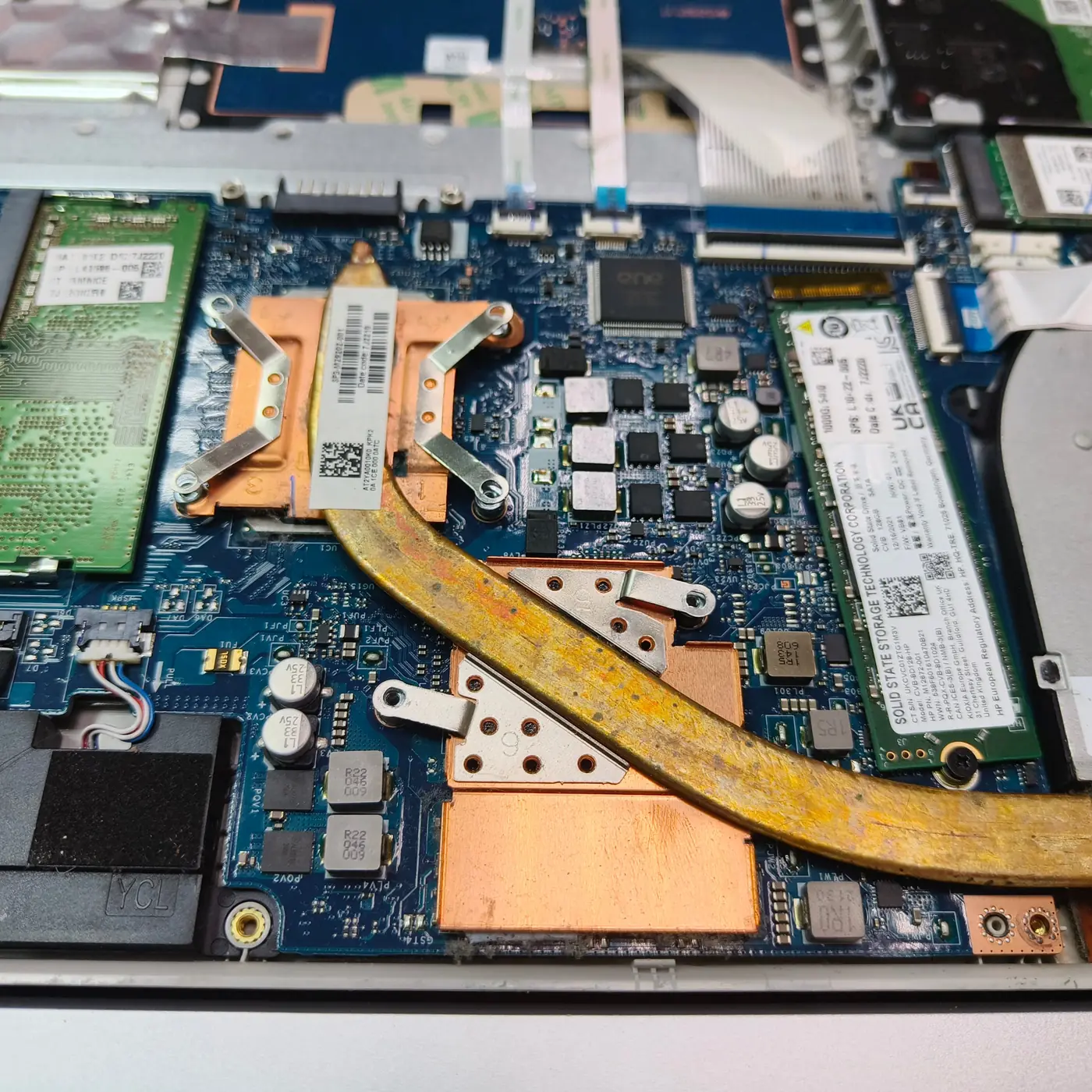
If the drive is healthy but undersized, estimate the capacity you need and check model compatibility. Confirm whether the slot supports SATA or NVMe, the required M.2 length, PCIe generation and any physical clearance or heatsink constraints. Do not assume that every M.2 slot uses the same protocol or that every laptop has a free second slot.
- Record free space and what is occupying it; move or archive nonessential large files where appropriate.
- Check drive health, temperature and the pattern of the slowdown before benchmarking.
- If the drive reports errors or drops offline, prioritize a verified backup and stop repeated tests.
- Read the exact laptop service manual or motherboard storage specification for the protocol, length and slot configuration.
- Use the Storage Calculator to estimate the capacity you need, then compare compatible drives on a like-for-like basis.
Compatibility is a separate gate—not an afterthought
Price comparisons become useless if the part does not fit or run correctly. For RAM, check the exact CPU and motherboard or laptop model, supported DDR generation, capacity, module format, slot layout and memory profile support. DDR4 and DDR5 are not interchangeable in a standard memory slot, and a laptop may use soldered memory that cannot be upgraded.
For an SSD, verify the interface and physical format instead of relying on the words “M.2 SSD” alone. M.2 describes a form factor; it does not by itself prove whether the drive is SATA or NVMe, what lengths fit, or which PCIe generation is supported. Check the manufacturer service manual and specification sheet for the exact model or motherboard revision.
Also compare warranty terms, return policy, seller identity, firmware support and the cost of any required bracket, heatsink or mounting screw. A cheap incompatible part is not good value, and a high-end part may add little if the computer cannot use its extra performance.
- Record the full model or board revision—not only the product family name.
- Confirm supported capacity and type in official manufacturer documentation.
- For laptops, verify soldered memory, occupied slots and whether the service procedure permits an upgrade.
- For NVMe drives, check protocol, physical length, slot sharing and clearance.
- Keep the receipt and existing component until the system has been tested successfully.
When waiting makes sense
Wait and compare prices when the PC is stable, the upgrade is optional, storage health is sound, and the measurable benefit is small or uncertain. Set an actual target price for the specific compatible part and monitor the same model or a truly equivalent configuration. Comparing a premium kit with a basic kit can make a price trend look like a bargain when the products are not equivalent.
A brief delay is especially reasonable if you have not checked compatibility yet, the current problem can be safely managed, or you plan to replace the whole computer soon. It is less useful to wait indefinitely without a target, because prices may fluctuate and your workload or support needs can change.
If a drive is failing, important work is blocked by a verified memory-capacity limit, or lack of storage repeatedly prevents required updates and work, delaying solely in the hope of a market reversal can cost more in downtime or data risk than it saves. Make the decision on the consequence of the problem, not only on a chart.
| Situation | Best starting decision | Why |
|---|---|---|
| SSD reports read errors, disappears, or has repeated I/O failures | Back up now; plan recovery or replacement promptly | Data protection takes priority over a speculative price drop. |
| Measured RAM pressure repeatedly blocks required work and the upgrade is confirmed compatible | Upgrade if the cost is justified and the system is otherwise sound | The purchase addresses a demonstrated limitation. |
| SSD capacity is repeatedly insufficient, the drive is healthy and the replacement fits | Upgrade when the capacity problem is worth the cost | A larger drive solves capacity, but does not automatically make every workload faster. |
| The PC is stable and you only want a small performance gain | Wait, set a target price and recheck comparable parts | There is no urgent limitation that justifies accepting any price. |
| The PC is slow but you have not measured memory or storage behavior | Diagnose first; do not buy yet | The real bottleneck may be software, CPU, GPU, temperature or a faulty component. |
| The desired RAM is soldered or the model’s slots are unclear | Confirm service options before spending | An assumed upgrade path may not exist for this exact device. |
A measured upgrade is better than a market-timing bet
A sensible purchase record is short: the symptom, the measurement that supports the diagnosis, the exact compatible part, the total landed cost, and what you expect to improve. This lets you compare options based on a real need instead of chasing an advertised transfer rate or a dramatic market percentage.
After an upgrade, retest the same workload under similar settings. For RAM, compare responsiveness and memory pressure; for storage, compare the same file or application operation and check health and temperature. A better specification or a successful boot does not prove that the original bottleneck has been resolved.
If the system remains slow, do not keep buying parts blindly. Return to the evidence and investigate other likely causes. For gaming, frame-time captures and GPU/CPU behavior can be more useful than adding RAM or an SSD without a memory or storage limitation.
How this page handles prices and evidence
This page was prepared on 22 October 2026. Its market snapshot uses public industry reporting and a separately documented sample of consumer listings. It is not a TWW retail survey, price prediction model, or claim that TWW has benchmarked every RAM or SSD product.
Supplier-contract forecasts describe a different part of the chain from individual retail listings. The consumer listing tracker includes only products it followed across the comparison period, and its own methodology notes that the catalogue was assembled in July 2026. Regional product mix, currency, availability, tax, shipping and warranty can change the price a buyer actually pays.
Review the industry outlook and retail snapshot again when the next quarterly data is available, or earlier if major market data changes. Before ordering, always verify current prices and specifications in the market where the part will be purchased.
- The price figures above are published third-party data with dates and sample limits; they are not TWW-generated price measurements.
- No universal saving percentage or future retail price is promised.
- The tool at the top of this article is a decision aid, not a PC scan, compatibility checker or fault diagnosis.
TWW editorial decision framework. The article does not claim a controlled benchmark result or a TWW retail-price survey. Market figures are dated third-party observations and forecasts; part compatibility must be checked against the exact PC model.
See the evidence behind this topic
These TWW research pieces examine the measurements, mechanisms, or testing questions related to this guide. Research pages distinguish measured results from general technical guidance.
- What Really Changes When an SSD Gets Nearly Full?A nearly full SSD is not automatically a failing SSD. The useful question is which workload changed and what storage evidence changed with it.
- Does More RAM Actually Make Windows Faster? What to Measure Before UpgradingYes—when memory capacity is the bottleneck. If Windows already has enough memory for the workload, adding more RAM may make little or no measurable difference.
Sources & further reading
- TrendForce: Q4 2026 DRAM and NAND contract-price outlook (30 September 2026) ↗
- MemRadar: September 2026 matched-product memory price record (frozen 12 October 2026) ↗
- Gartner: Q3 2026 worldwide PC shipment report (12 October 2026) ↗
- TrendForce: DRAM and NAND spot-market update (21 October 2026) ↗
- Crucial: RAM and SSD compatibility selector ↗
- Microsoft Learn: Optimize-Volume ↗
Frequently asked questions
Should I upgrade RAM or SSD first?
Upgrade the part linked to a measured limitation. RAM is the stronger candidate when memory pressure and paging repeatedly affect the workload. An SSD upgrade may be justified by insufficient capacity or a confirmed storage problem. If you have not measured the cause, diagnose first.
Will RAM or SSD prices be cheaper in 2027?
No source can guarantee the retail price of a particular part in your country. Supplier forecasts and tracked listings provide context, but prices vary by product, seller, stock, currency, taxes, shipping and warranty. Compare the exact compatible part and set a target price rather than relying on a broad forecast.
Is high RAM usage proof that I need more memory?
No. Check responsiveness, committed memory, paging and the workload when the slowdown occurs. A high in-use percentage without performance symptoms does not prove that extra capacity will help.
Does a larger SSD make Windows faster?
Not automatically. A larger SSD solves a capacity problem if the current drive is full or too small. Performance depends on the drive, workload, interface, thermals and other system limits; a healthy drive that already meets the workload may not feel faster after a capacity upgrade.
Should I wait to replace an SSD that reports errors?
Do not postpone data protection because prices may change. Back up important files and verify the backup, reduce unnecessary writes, and investigate or replace the drive based on the evidence. Repeated errors or disconnects make data safety more urgent than price timing.
Can I upgrade the RAM in any laptop?
No. Some laptops have soldered memory, limited slots or model-specific capacity limits. Check the exact device specification and service manual before buying a module.
Are the published price increases global retail prices?
No. TrendForce contract forecasts describe component-supplier pricing, while MemRadar tracks a defined sample of consumer listings. Neither is a universal retail price for every country, seller or compatible product.
We distinguish documented facts, measured results, and informed guidance. If a claim depends on a specific device, software version, game, or test method, that context should be stated rather than implied.
Meet the author·See our testing methodology·Read our editorial policy