Protect existing data before attempting repairs. A drive missing in BIOS is a different problem from a drive visible in Disk Management but absent from File Explorer, and initializing or formatting the wrong disk can destroy access to data.
Protect the data before troubleshooting
If the SSD previously contained files you need, do not initialize it, format it, delete partitions or run destructive disk commands just because Windows asks for action. A disk can be missing because of a connection, slot-compatibility or hardware fault, and a damaged partition can also prevent normal mounting. Changing its layout may make recovery more difficult.
Start by deciding whether this is a brand-new empty drive or a drive that was already used. If the drive has important data and suddenly disappeared, repeatedly restarting, reseating or running repairs is not a substitute for a backup or recovery plan. If the drive intermittently vanishes, reports errors or fails a manufacturer's health test, stop unnecessary writes and consider qualified data recovery.
| What you observe | What it may mean | Safe next step |
|---|---|---|
| SSD is absent in BIOS/UEFI | Physical connection, slot support, power, firmware or drive fault | Check the exact system manual and model-specific slot support. |
| SSD appears in BIOS but not in File Explorer | Disk may be offline, unpartitioned, missing a letter or unreadable | Open Disk Management and inspect status without initializing or formatting. |
| Drive appears as Offline | Windows is not exposing it as an available disk | Check why it is offline; bring it online only when the disk identity and data context are clear. |
| Partition is healthy but no letter appears | A mounted volume may lack a drive letter | Assign a letter only if the partition is the expected volume and data is intact. |
| Previously working drive disappears intermittently | Connection, controller, firmware or drive-health problem | Protect data and use the manufacturer's diagnostic or service guidance. |
Check whether the drive is detected by BIOS or UEFI
Enter firmware setup using the method documented for the exact laptop or motherboard, then look for storage or NVMe/SATA device information. Menu names vary. If the drive is not listed, changing a Windows drive letter or reinstalling a Windows application will not fix that detection layer.
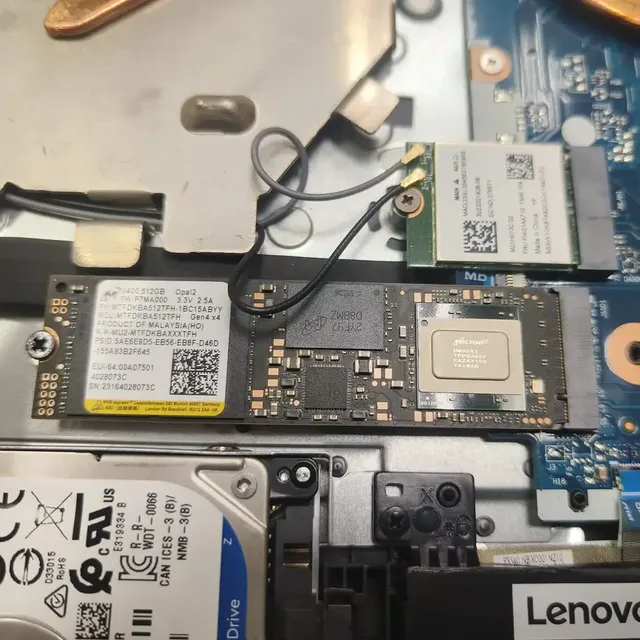
For a desktop SATA SSD, the model manual may identify data-cable and power-connector checks. For an M.2 drive, verify that the slot supports the installed drive type and length, and check whether the manual describes shared lanes or ports that become unavailable with particular configurations. M.2 describes a physical form factor; it does not guarantee that every slot supports both SATA and NVMe.
Only inspect internal connections when the system is fully powered down, unplugged and safe to open. Follow the manufacturer's service guide. If removing the drive could affect warranty or you are not comfortable handling small connectors, stop and use professional service.
Inspect the disk in Windows Disk Management
If firmware detects the SSD, open Disk Management by right-clicking Start and choosing Disk Management, or search for Create and format hard disk partitions. Compare the capacity and status carefully so you do not select the Windows system disk or a different external drive.
An Offline disk, a healthy partition without a drive letter and an Unallocated disk are different conditions. If an expected healthy partition simply lacks a letter, a letter may restore access without formatting. If a disk is offline, check the context and its identity before bringing it online. If the partition shows RAW, Unknown or Not Initialized and the drive previously held files, do not treat that state as permission to initialize or format it.
Initialization is intended for a new disk with no existing data. Microsoft explicitly separates this from troubleshooting a disk that already holds files. If the drive is genuinely new, empty and correctly detected, use Microsoft's supported setup procedure; otherwise preserve the existing layout and investigate why Windows cannot read it.
Use manufacturer diagnostics without risking files
If Windows or firmware intermittently detects the drive, check the SSD manufacturer's official diagnostic utility and support documentation for the exact model. Save any available error code or health report. Do not assume a single SMART value or an application displaying Good proves the entire storage path is fault-free.
Avoid firmware updates, secure erase, format, partition changes or command-line repairs until you have confirmed the data is backed up and the operation is appropriate for the problem. If the device is disconnecting during use or reporting media errors, prioritize data preservation over stress tests.
For a drive that is not detected in firmware after confirming supported slot, proper installation and model-specific connections, the remaining possibilities may include the SSD itself, the slot, controller or motherboard. A cross-test can help only if performed with compatible hardware and with the data-preservation risks understood.
Know when to stop
Stop when the drive contains irreplaceable data and is repeatedly disappearing, cannot be read, or makes a previously used data volume appear blank or uninitialized. Do not create a new volume to see whether the disk starts working. Record the exact firmware and Disk Management status and seek an experienced storage technician or data-recovery service when the files are important.
Once data is safe, keep a backup and follow the SSD or computer manufacturer's replacement procedure if diagnostics identify a failing drive. If the SSD is detected in firmware but Windows cannot mount a volume, continue with the appropriate Windows storage path rather than immediately buying another drive.
Disk Management labels do not by themselves prove a drive is healthy. Initialization, formatting, partition deletion and certain command-line operations can destroy access to existing files. If the drive contains needed data, prioritize preservation and manufacturer-approved diagnostics over attempts to make it appear in File Explorer.
See the evidence behind this topic
These TWW research pieces examine the measurements, mechanisms, or testing questions related to this guide. Research pages distinguish measured results from general technical guidance.
- What Really Changes When an SSD Gets Nearly Full?A nearly full SSD is not automatically a failing SSD. The useful question is which workload changed and what storage evidence changed with it.
- How SSD Temperature Can Affect Real-World PerformanceThis TWW research page explains a repeatable measurement method. It does not claim a universal temperature cutoff or publish an SSD-to-SSD laboratory comparison.
Sources & further reading
Frequently asked questions
Why is my SSD detected in BIOS but not in File Explorer?
Windows may see the disk as offline, unallocated, missing a drive letter or unable to read its partition. Check Disk Management without initializing or formatting a drive that already contains data.
Should I initialize an SSD that says Not Initialized?
Only when you have confirmed it is a new, empty disk with no existing data. If it previously held files, initializing it can put data at risk; investigate the fault and preserve the drive first.
Can an M.2 SSD fit a slot but still not work?
Yes. Physical fit alone does not confirm that the slot supports the drive's interface or configuration. Check the exact system manual for NVMe/SATA support and shared-slot limitations.
What should I do if an SSD keeps disappearing?
Protect important files, avoid unnecessary writes and record the manufacturer's diagnostic results. Intermittent detection can involve the drive, connection, slot or controller and needs more than a drive-letter change.
We distinguish documented facts, measured results, and informed guidance. If a claim depends on a specific device, software version, game, or test method, that context should be stated rather than implied.
Meet the author·See our testing methodology·Read our editorial policy