
A lifting trackpad or bulging laptop case can indicate a swollen battery. Stop using and charging the device, do not press the case flat, and arrange safe service.
Urgent warning signs: stop using and charging the laptop
A swollen lithium-ion battery can push against the trackpad, keyboard, palm rest or bottom cover. The case may separate, the touchpad may become difficult to click, or the laptop may wobble on a flat surface. Treat new unexplained bulging or case separation as a safety issue, not a cosmetic defect.
If swelling is suspected, shut the laptop down if you can do so without pressing or bending the case, disconnect the charger if safe, and stop using it. Do not squeeze the case closed, puncture the battery, remove it with improvised tools, or ship it without following the carrier and manufacturer’s battery rules. Arrange service with a qualified repair provider.
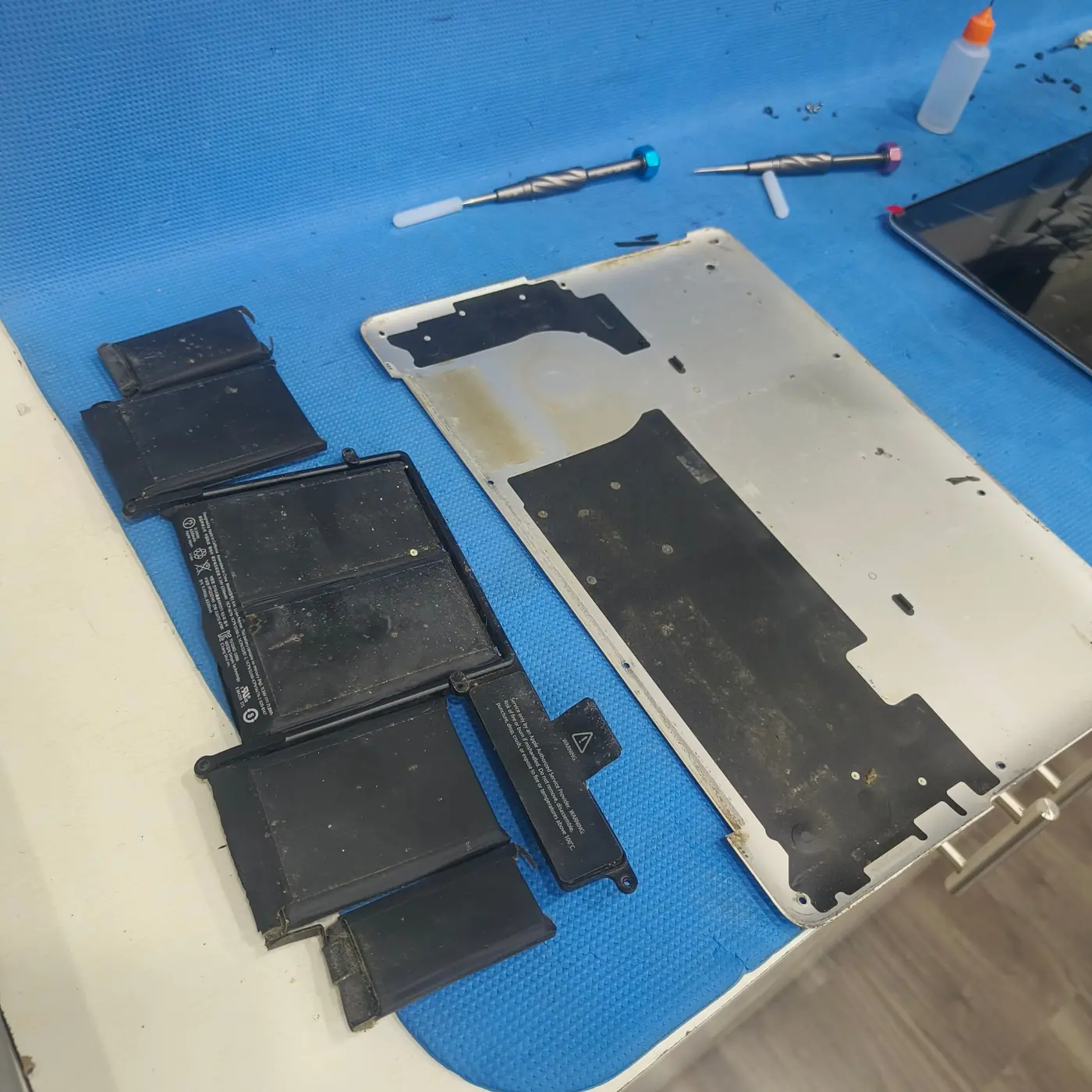
- Battery or chassis visibly swollen, warped or separating.
- Trackpad or keyboard suddenly lifted by pressure from underneath.
- Unusual localized heat while idle or charging, especially with a smell, hissing or smoke.
- Battery damage after a drop, crush, puncture or liquid exposure.
Other symptoms that deserve investigation
A battery that drains quickly, reports a large capacity loss, shuts the laptop down unexpectedly, or refuses to charge may be worn or faulty. Those symptoms can also come from a high workload, power settings, a charger or charging-port problem, firmware, or inaccurate battery reporting. They warrant diagnosis, but they do not all mean the battery is physically dangerous.
Compare runtime under a similar workload and brightness setting, check the manufacturer’s battery diagnostic, and note whether the percentage drops suddenly or the laptop turns off while charge remains. Avoid repeatedly draining a battery to zero as a test.
| Observation | What it may indicate | Next step |
|---|---|---|
| Bulging or case lifting | Possible physical battery swelling | Stop use/charging and arrange safe service |
| Very hot at idle or unusual smell | Possible battery, charging or other hardware fault | Disconnect power if safe; stop using and seek assessment |
| Short runtime only | Battery wear, workload, brightness or background activity | Run model-specific diagnostics and compare usage |
| Charge percentage jumps or shutdowns | Battery wear, calibration/reporting or power-path issue | Check manufacturer diagnostics and charger behavior |
| Battery not detected | Battery connection, firmware, battery or board issue | Use manufacturer support guidance; do not open sealed packs |
Check battery health without opening the pack
On many Windows laptops, the built-in battery report can provide a useful starting point. Open Terminal or Command Prompt and run the command below, then open the generated report and compare design capacity with full-charge capacity. The report is an estimate from the system’s battery interface; it is not a physical safety inspection.
powercfg /batteryreport- Use the manufacturer’s own diagnostics when available.
- Compare full-charge capacity with design capacity, but interpret the result alongside actual runtime and shutdown behavior.
- Check the exact laptop model’s battery replacement and warranty guidance.
- Do not use software health numbers as a reason to keep charging a physically swollen or overheating battery.
Why you should not attempt a risky DIY removal
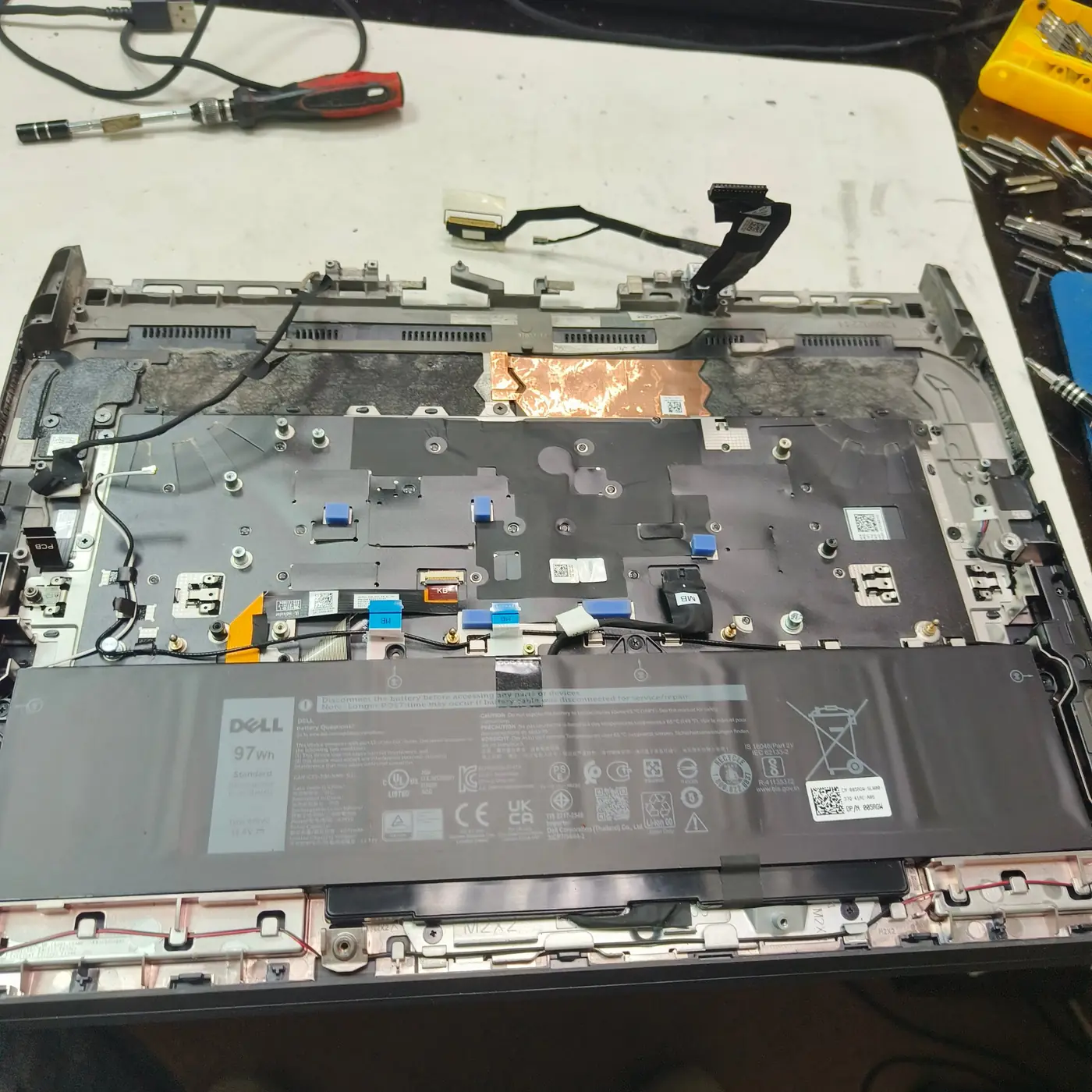
Internal batteries can be held with adhesive, connected by fragile cables and positioned beside other components. A tool slip or bent pouch cell can damage the pack. If the battery is swollen, the risk is greater: do not press it down to regain access to screws or the bottom cover.
Use a repair provider that can identify the correct battery part, inspect the charging path, and dispose of the old pack through an appropriate battery collection or recycling channel.
Bottom line
Swelling, case deformation, unusual heat or signs of physical damage mean stop using and charging the laptop and arrange safe service. For battery drain or reduced runtime without physical warning signs, start with the manufacturer’s diagnostics and a consistent usage comparison. Never puncture, compress or try to repair a lithium-ion battery pack yourself.
Safety guidance based on manufacturer and government battery-handling guidance. Battery runtime and wear indicators vary by model, workload, age and temperature; no single software percentage diagnoses every battery fault.
Sources & further reading
Frequently asked questions
Can I keep using a laptop with a swollen battery if it still works?
No. Stop using and charging it and arrange qualified service. Do not press the case closed or attempt to remove a swollen pack with improvised tools.
Does fast battery drain always mean the battery needs replacement?
No. Workload, brightness, background applications, charger problems and reporting errors can also affect runtime. Use model-specific diagnostics unless physical warning signs make continued use unsafe.
Is a battery report enough to prove the battery is safe?
No. A battery report estimates capacity and usage history. It cannot rule out swelling, internal damage or another physical safety fault.
We distinguish documented facts, measured results, and informed guidance. If a claim depends on a specific device, software version, game, or test method, that context should be stated rather than implied.
Meet the author·See our testing methodology·Read our editorial policy