
First separate a no-power fault from a laptop that powers on without displaying an image. The lights, fan behavior, charger indicator and any recent damage help choose the next test.
First decide: no power, or power with no picture?
“Won’t turn on” can describe two different problems. A laptop with no lights, fan movement or other response may have a power-delivery problem. A laptop with lights or fans but no image may be starting without displaying video, failing during memory or firmware initialization, or showing an image on a different display path.
Before changing anything, note the exact model, whether the charger light is on, whether the laptop’s own LEDs respond, whether the fan starts, and whether the problem began after a drop, liquid spill, repair, update or battery issue. Those details are more useful than repeatedly pressing the power button.
| Symptom | First direction | Avoid |
|---|---|---|
| No lights or fan at all | Outlet, adapter, cable, charging port and power state | Assuming the motherboard is definitely dead |
| Charging light appears, but power button does nothing | Model-specific reset procedure and battery/adapter behavior | Random pin-short or undocumented reset methods |
| Lights or fan start, but screen stays black | Brightness, display output, startup time and external-display test | Repeated forced shutdowns before allowing startup time |
| Starts briefly, then switches off | Power stability, cooling, memory or board-level fault | Repeatedly cycling power if there is heat, smell or liquid damage |
| Beep or diagnostic LED pattern | Manufacturer’s model-specific diagnostic code | Using another model’s LED-code table |
Try these low-risk checks first
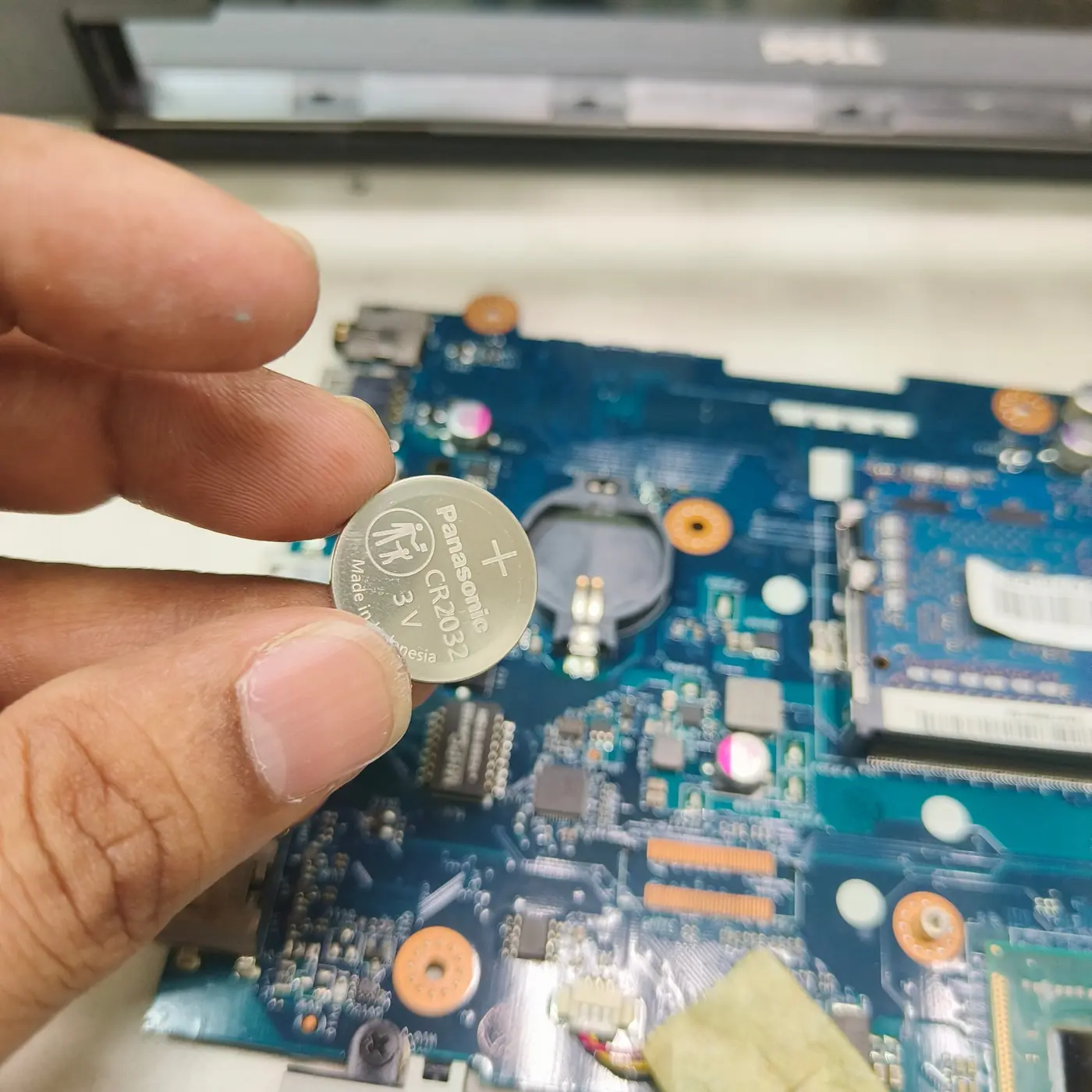
A reset procedure is not universal. Some models require disconnecting the adapter and holding the power button; others have a documented emergency-reset pinhole or different sequence. Use the manufacturer’s instructions for the exact model.
- Disconnect docks, USB devices, external drives, memory cards and other accessories. Leave only the required power connection.
- Check the wall outlet with another device and inspect the charger cable and plug for damage. Use the correct, known-good compatible adapter if one is available.
- Inspect the charging port from the outside. Stop if it is loose, visibly damaged, unusually hot or smells burnt; do not force the connector.
- If there are no signs of liquid damage, swelling, unusual heat or electrical smell, follow the manufacturer’s documented power-reset procedure for the exact model. Procedures differ, so do not guess at key combinations or reset pinholes.
- Press the power button once and wait long enough for the model to complete its normal startup sequence. Record any light pattern, fan movement, beep or on-screen message.
- If the laptop appears to run but the built-in display is black, increase brightness and, if practical, test a known-good external display. A successful external image points toward the internal display path rather than proving the whole laptop is healthy.
When the symptoms suggest a deeper fault
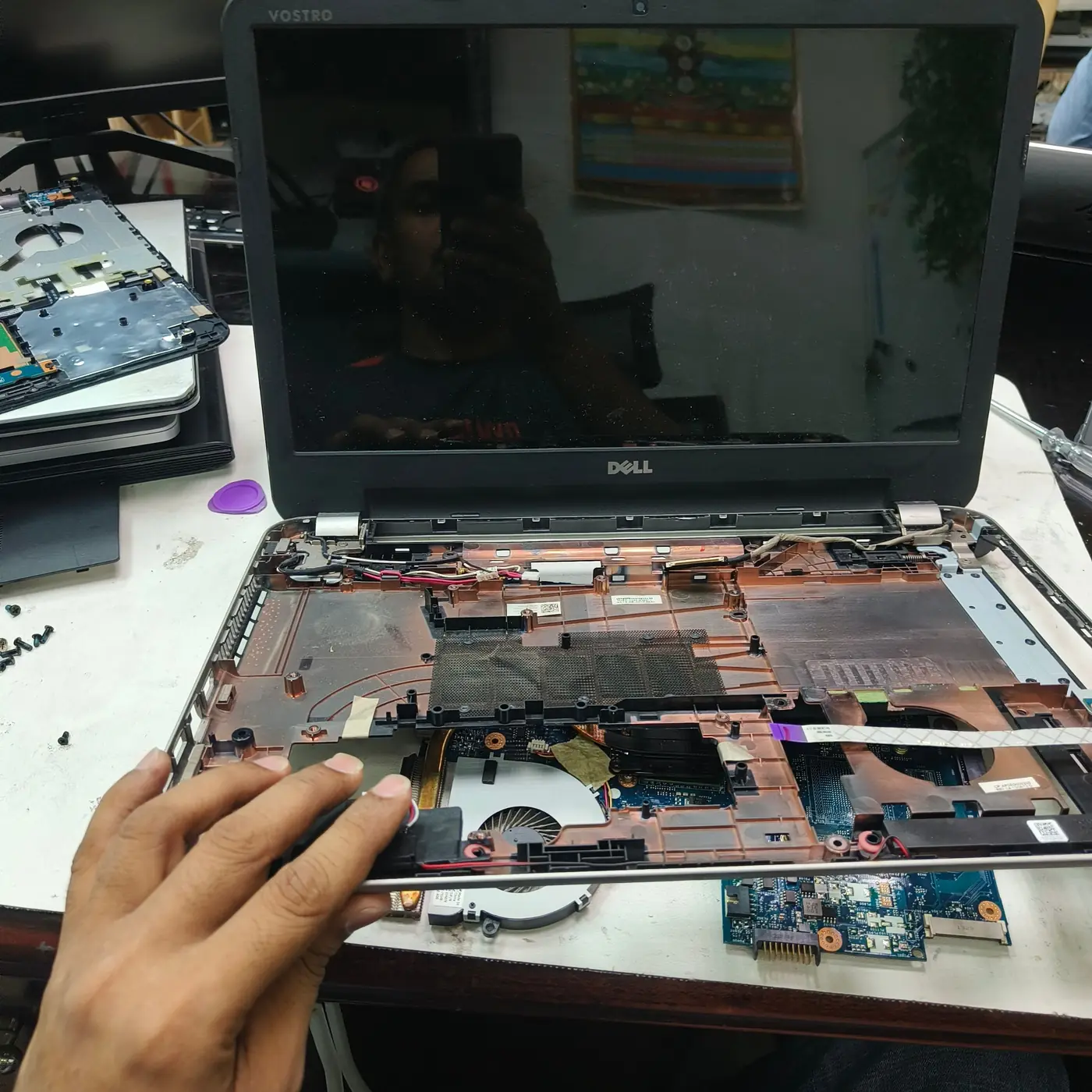
A charger indicator that turns off when connected to the laptop, a port that moves, a burnt smell, visible liquid damage, or repeated immediate shutdowns deserve professional diagnosis. Possible causes include the adapter, DC-in path, battery, protection circuitry, motherboard power rails or a shorted component. Symptoms alone cannot identify which component failed.
Lights and fans with no image can also involve memory, firmware, the display cable or panel, graphics hardware, or a board-level startup failure. A model-specific diagnostic LED or beep code can narrow the possibilities, but it is not a substitute for testing.
- Stop immediately for battery swelling, liquid exposure, smoke, a burning smell or unusual localized heat.
- Do not open a swollen battery, puncture it, press the case flat or keep charging the device.
- Do not short motherboard pins, probe live power rails, flash firmware blindly or disconnect an internal battery without the correct service procedure.
- If important files are on the laptop, tell the technician that data preservation matters before approving a reinstall or drive replacement.
What to record before arranging a repair
A concise symptom history helps avoid replacing parts based on guesswork. Share the exact model, charger specifications, light or beep patterns, recent events, and which safe checks changed the behavior. If the device powers briefly, note how long it stays on and whether the fan or display responds.
Bottom line
Start by distinguishing no power from no display, then work through the external power path and model-specific reset instructions. If the laptop shows signs of electrical damage, swelling or repeated shutdown, stop testing and seek qualified service. A careful diagnosis is safer and often cheaper than ordering parts based on one symptom.
This is a symptom-led diagnostic guide, not a claim that every listed fault was reproduced on one laptop. Model-specific service manuals take precedence. Do not open a device or disconnect an internal battery unless you are qualified and can follow the manufacturer’s safety procedure.
See the evidence behind this topic
These TWW research pieces examine the measurements, mechanisms, or testing questions related to this guide. Research pages distinguish measured results from general technical guidance.
- Does More RAM Actually Make Windows Faster? What to Measure Before UpgradingRAM capacity is valuable when the workload needs it. The mistake is treating every slow PC as a memory-capacity problem.
Sources & further reading
Frequently asked questions
My laptop charging light is on, but it will not start. Is the motherboard dead?
Not necessarily. The adapter, battery, power button path, charging circuitry, firmware, memory or motherboard can produce overlapping symptoms. Diagnosis requires model-specific checks.
Should I remove the battery to test a laptop?
Only if the battery is designed to be user-removable and the manufacturer documents the procedure. Do not open a sealed laptop or disconnect an internal battery unless qualified.
Can I keep trying to turn it on after a liquid spill?
No. Disconnect power if it is safe to do so, do not continue charging or powering it, and arrange professional assessment. Repeated power attempts can worsen damage.
We distinguish documented facts, measured results, and informed guidance. If a claim depends on a specific device, software version, game, or test method, that context should be stated rather than implied.
Meet the author·See our testing methodology·Read our editorial policy