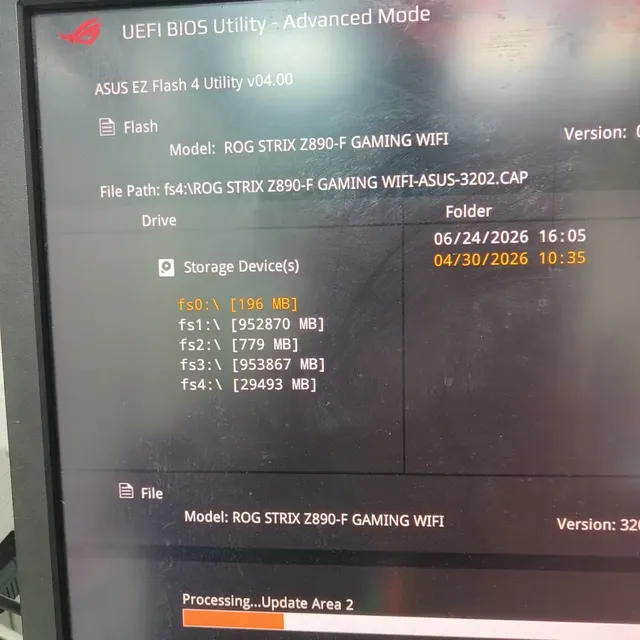
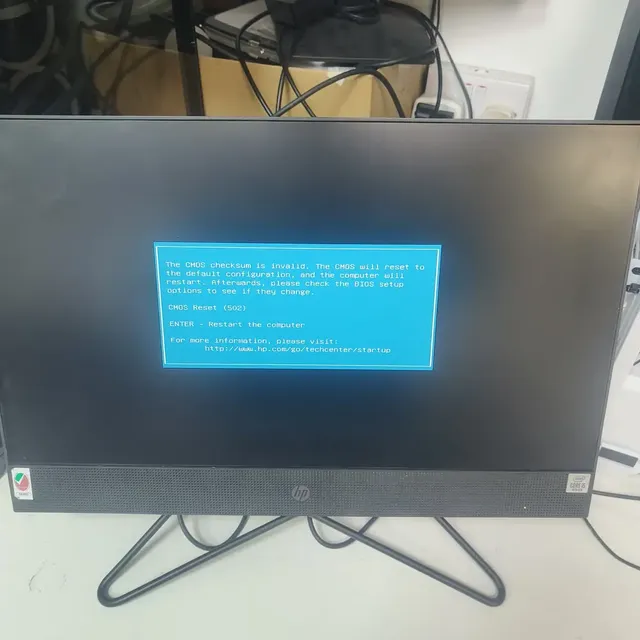
A black screen or boot loop after a firmware update can indicate corrupted firmware, but memory training, power delivery and other hardware faults can look similar. Use this evidence-led recovery sequence before attempting a reflash.
Start here: what happened, and what still works?
A failed BIOS/UEFI update can leave a computer unable to complete its power-on self-test (POST). But “bricked” describes what the computer does, not the proven cause. A memory-training issue, unstable power rail, embedded-controller problem, damaged component or display fault can produce similar symptoms.
Before changing anything else, record the exact device or motherboard model, the update package used, whether power was interrupted during the write, and what happens at the next startup. If the machine still reaches firmware setup, record any error message and whether the system drive is detected.
| What you observe | What it suggests | First safe action |
|---|---|---|
| No lights, fan activity or other response | Power delivery, adapter, battery, cable or board fault; firmware is not established as the cause | Follow the device maker’s no-power checks before firmware recovery. |
| Power and fans, but no logo or display | Possible firmware or POST failure, but also memory, display, GPU or board trouble | Disconnect unnecessary peripherals and note diagnostic LEDs or beep patterns. |
| Repeated power-on / power-off cycles after update | Firmware recovery or memory training may be involved; power and hardware faults remain possible | Allow the manufacturer-specified recovery or memory-training time; do not interrupt a recovery in progress. |
| Firmware setup opens, but Windows does not start | Boot order, storage detection, boot configuration or OS issue may be more likely than corrupted firmware | Check whether the drive is detected and use the Windows startup troubleshooting path. |
| BitLocker asks for a recovery key after update | TPM/boot measurements may have changed; this does not by itself mean the update failed | Find the correct recovery key before changing security settings or attempting recovery. |
Do not make the failure harder to diagnose
Stop repeated forced restarts if the system may be performing an automatic recovery. Do not try firmware files from a similar-looking model, a different board revision, or an unofficial dump site. The wrong image can make recovery more difficult and may overwrite device-specific data.
Do not disconnect power during a recovery process, short unidentified pins, attach a programmer without confirming voltage and pinout, or desolder a flash chip without the correct equipment and board-level experience.
- Write down the failure sequence before trying another fix.
- Use only the firmware package and recovery procedure intended for the exact model and hardware revision.
- Keep the original firmware contents available when professional chip-level work is necessary and a read is possible.
- Change one thing at a time so each result remains useful evidence.
BIOS, UEFI, CMOS and NVRAM are not the same thing
“BIOS” is commonly used as a general term for motherboard firmware, including modern UEFI firmware. The firmware initializes the platform and starts the boot process. On a UEFI system, boot files normally live on an EFI System Partition on the storage drive, while boot entries and related variables are stored separately in firmware-managed NVRAM.
A CMOS or firmware-settings reset usually clears configuration such as boot order or tuning settings; it does not normally rewrite the firmware program. On Macs, NVRAM reset and firmware recovery are also distinct operations. Do not assume that clearing settings will repair corrupted firmware.
| Operation | What it changes | When it may help |
|---|---|---|
| Settings / CMOS reset | Stored setup settings, depending on platform | Incorrect settings, failed overclock or boot-order confusion. |
| Built-in OEM recovery | Uses a manufacturer-designed recovery path or backup, where supported | Some failed updates or firmware corruption on supported models. |
| External SPI flash programming | Reads or writes a firmware flash device using dedicated hardware | Specialist fallback when built-in recovery is unavailable or unsuccessful and diagnosis supports it. |
Safe troubleshooting sequence
Move from identification and observation to documented recovery. Do not skip directly to chip programming or repeated firmware writes.
- Identify the exact model and revision. Use the full model or board identifier, not just the product family name. Laptop sub-models and regional variants can use different firmware.
- Check the manufacturer’s current support page for the exact model. Confirm whether it documents automatic recovery, a recovery USB, a dedicated flashback button, dual-firmware behavior, or another supported process.
- Check power and peripherals. Use the specified adapter and stable power source, disconnect unnecessary USB devices, and follow the maker’s instructions about battery or charger requirements.
- Observe diagnostic signals. Record beep patterns, blinking status LEDs, debug-code displays, fan behavior and whether the display or external monitor receives a signal. Decode them using the documentation for the exact device.
- If firmware setup is available, verify whether the system drive appears and whether the boot entry is present. Avoid changing Secure Boot, TPM, storage mode or other security/boot settings without recording the original values and understanding the consequences.
- Use the documented recovery method only if the model supports it. Follow the exact file naming, USB format, key sequence and waiting period specified by the manufacturer; generic key combinations are not universal.
- If the documented recovery fails, stop guessing. A qualified technician can distinguish a firmware-image problem from power, memory, embedded-controller or motherboard faults and decide whether chip-level recovery is appropriate.
- After recovery, verify that the system reaches POST consistently, enters firmware setup, detects memory and storage, boots the operating system, and remains stable. Restore required security settings and check for any device-specific follow-up steps.
Manufacturer recovery methods: use the official model-specific instructions
There is no single recovery key combination or USB procedure that works across all computers. Even within one brand, steps can change by product family and generation. Use these official support starting points, then search for the exact model or board revision and confirm that the document applies to it.
- Dell: BIOS recovery instructions and supported recovery options vary by model.
- HP: BIOS recovery and HP Sure Start behavior depend on the system generation and platform.
- Lenovo: ThinkPad, IdeaPad, Legion and other families may have different recovery procedures.
- ASUS: some products support CrashFree BIOS or USB BIOS FlashBack; availability and steps depend on the exact board.
- Acer: use the model-specific support and firmware documentation rather than assuming a generic key sequence.
- MSI and Gigabyte: confirm whether the exact motherboard supports a dedicated flashback feature or redundant firmware; these features are not universal.
- Apple: Intel and Apple silicon Macs use different firmware-recovery procedures. Follow Apple’s current instructions for the exact model and chip generation.
BitLocker and TPM: protect access to encrypted data
A firmware update can change boot measurements that BitLocker uses when deciding whether to release a drive’s encryption key automatically. A recovery-key prompt after an update can therefore be an expected security response, not proof of firmware corruption or tampering.
Before updating firmware on a Windows device, locate and verify access to the BitLocker recovery key and follow Microsoft’s current guidance about suspending protection for firmware updates. If the recovery screen appears, use the correct key associated with that device. Do not clear the TPM or change Secure Boot settings as a guess; doing so can complicate access and troubleshooting.
Firmware recovery does not decrypt a BitLocker-protected drive and does not retrieve a missing recovery key. Keep the key separate from the device and follow your organization’s policy if the computer is managed.
When external SPI programming may be appropriate
If the device cannot run its own recovery process, a specialist may consider direct programming of a supported SPI flash device. This is not a universal DIY step: modern platforms can use multiple firmware devices and may store board-specific configuration, identifiers, calibration data or security-related regions in the original image.
A careful workflow identifies the correct device and electrical requirements, reads and preserves the original contents where possible, verifies the replacement image against the exact platform, writes only what is justified, and validates the result. A successful write does not prove that a separate hardware fault has been fixed.
If the board has no response, abnormal power rails, liquid damage, corrosion or failed components, diagnosis and repair may be needed before firmware recovery can succeed.
Data safety: what recovery does and does not mean
Firmware storage and the SSD or hard drive are normally separate devices, so rewriting firmware does not inherently erase files on the system drive. However, encrypted data can remain inaccessible without its recovery key, and a separate factory reset or operating-system reinstall can affect files. Confirm the proposed procedure and obtain authorization before any operation that may alter storage.
If the drive is failing or contains irreplaceable data, prioritize data-preservation advice before repeated boot attempts or repair operations that write to the drive.
What to prepare before requesting help
These details help support staff or a repair professional identify the correct recovery procedure and avoid repeating risky steps.
- Exact computer or motherboard model, hardware revision and serial/service identifier where appropriate.
- Firmware version before the update, target version, and the official package or support-page URL used.
- Whether power was interrupted during the write or the failure happened on the first reboot afterward.
- A short video or written record of lights, beeps, debug codes, fan behavior and screen output.
- Whether the firmware setup detects the SSD/HDD and whether BitLocker or another drive-encryption system is enabled.
- Recovery steps already attempted, including the exact official procedure and the result of each attempt.
Frequently asked questions
Use the answers below as general guidance; the exact manufacturer procedure and platform documentation take priority.
- Can a computer recover after a failed BIOS update? Often, but not always. Success depends on the recovery design, the integrity of the firmware device, and whether the underlying hardware is healthy.
- Does a black screen prove BIOS corruption? No. Memory, power, display, GPU, embedded-controller and motherboard faults can look similar.
- Will resetting CMOS fix a corrupted BIOS? Usually not. A settings reset and firmware recovery are different operations.
- Can I use a BIOS file from a similar model? Do not. Use only a package explicitly intended for the exact supported model and revision.
- Will firmware recovery erase my files? Rewriting firmware does not inherently erase the storage drive, but encryption prompts and separate reset/reinstall procedures can affect access or data. Verify the planned steps first.
- Should I use an SPI programmer myself? Only if you have the required electronics skills, correct voltage/pinout information, suitable equipment and a verified image. Otherwise, seek qualified board-level help.
- Does every motherboard have backup BIOS? No. Redundant firmware and flashback features are model-specific.
- What if Windows starts but the computer is unstable after the update? Check the manufacturer’s post-update guidance, firmware settings and relevant drivers, and investigate the actual symptoms instead of repeatedly reflashing.
This is a documentation-based troubleshooting guide, not a report of controlled hardware tests. Recovery behavior differs by exact model, board revision and firmware generation. Confirm procedures and files against the device manufacturer’s current documentation.
Sources & further reading
Frequently asked questions
Can a laptop or desktop be repaired after a failed BIOS update?
Sometimes. A supported built-in recovery method or specialist firmware programming may restore it, but a failed POST can also be caused by memory, power, embedded-controller or motherboard faults. Diagnosis comes before choosing a recovery method.
Does a black screen after a BIOS update prove firmware corruption?
No. It is an important clue when it follows an interrupted update, but RAM training, display, GPU, power and other board-level faults can produce similar symptoms.
Can resetting CMOS repair a corrupted BIOS?
A CMOS or settings reset usually clears configuration; it does not normally rewrite the firmware program. Use the manufacturer’s documented recovery process if firmware corruption is suspected.
Is it safe to flash firmware from a similar model?
No. Firmware compatibility can depend on exact model, motherboard revision and platform. Use only a package explicitly supported for the device.
Why did BitLocker ask for a recovery key after the firmware update?
The update may have changed TPM boot measurements that BitLocker checks. Find the correct recovery key and follow Microsoft’s guidance rather than assuming the firmware is corrupted.
Will BIOS recovery delete files on my SSD?
Rewriting firmware does not inherently erase a separate storage drive, but it does not bypass encryption, and a factory reset or OS reinstall can affect data. Confirm every proposed step before proceeding.
Does every computer support USB BIOS recovery or flashback?
No. Recovery features and exact procedures vary by model and generation. Verify support on the manufacturer’s official page for the exact device.
We distinguish documented facts, measured results, and informed guidance. If a claim depends on a specific device, software version, game, or test method, that context should be stated rather than implied.
Meet the author·See our testing methodology·Read our editorial policy