First establish whether other devices disconnect at the same time. If only one PC drops, investigate its wireless adapter and driver; if several devices drop together, start with the access point, router or internet service.
Start with the pattern, not a network reset
A Wi-Fi connection that repeatedly disconnects is different from a connection that stays connected but cannot reach the internet. Repeated drops can come from the PC, wireless adapter, driver, signal environment, access point, router or a wider service interruption. The quickest route is to find out what changes when the failure happens.
Before changing anything, note the time of a drop, whether the Wi-Fi icon changes, whether reconnecting happens automatically, and whether a video call or download is interrupted. If the problem began after a driver, Windows, router or power-setting change, record that too.
| What you observe | What it may indicate | Safest next test |
|---|---|---|
| Several devices disconnect together | Router, access point, power or ISP issue | Check router status and test another device when the network returns. |
| Only one Windows PC disconnects | Adapter, driver, configuration or device-specific interference | Test the PC on a different trusted Wi-Fi network. |
| Drops happen mostly far from the router | Weak signal, interference or roaming behavior | Repeat the test close to the access point. |
| Drops mainly on battery power | A power profile or adapter power behavior may be involved | Compare on AC power, then inspect the adapter's supported power options. |
| Wi-Fi remains connected but websites fail | DNS, gateway, VPN, proxy or upstream internet problem | Use the connected-but-no-internet guide linked below. |
Determine whether the fault follows the PC or the network
Run two controlled comparisons. First, check whether a phone or another computer loses Wi-Fi at the same moment. Second, connect the affected PC to a different trusted network, such as a personal mobile hotspot if available. Do not use an unfamiliar open network for sensitive activity.
If the PC stays stable on another network, the original router, signal conditions or network configuration becomes a stronger suspect. If the PC disconnects on multiple unrelated networks, focus on the laptop's wireless adapter, driver, power behavior or hardware. Neither result proves a single cause, but both narrow the search.
Repeat the same test near the router and at the usual problem location. A stable connection near the access point but recurring drops in one room point toward signal coverage, interference, walls or band/roaming behavior rather than a Windows-wide fault.
- Record whether other devices drop at the same time.
- Test the Windows PC near the router.
- Test the same PC on a second trusted network if possible.
- Compare behavior on AC power and battery if the drops appear power-related.
- Keep a note of the one variable changed between each test.
Inspect the Windows wireless adapter and driver
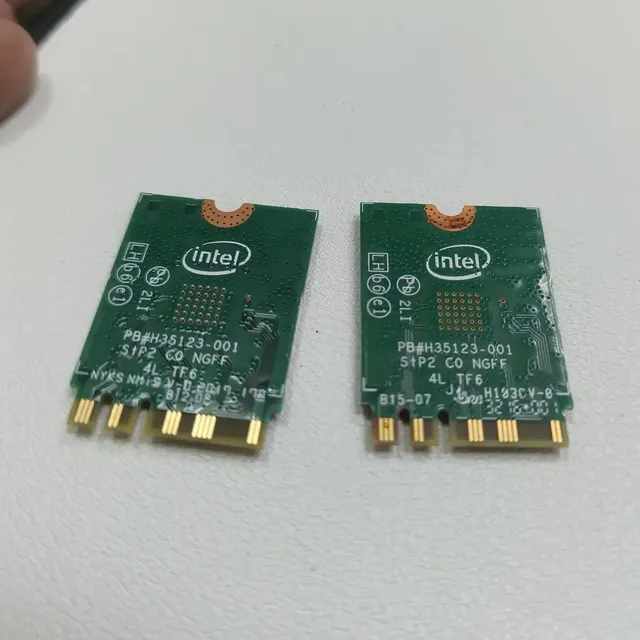
Open Device Manager and expand Network adapters to identify the exact wireless adapter model. Record the driver provider, date and version from the adapter's Properties window before updating it. A generic name or an old date alone does not prove that a driver is faulty.
Install drivers through Windows Update or the official support page for the exact laptop or adapter model. Avoid third-party driver-updater utilities, which can supply mismatched packages. If the drops began immediately after a driver update and the Roll Back Driver option is available, compare the previous driver under the same conditions before trying other changes.
Power-saving behavior deserves attention only when the pattern supports it, such as drops that occur on battery or after idle periods. Some adapter properties and power options differ by driver and Windows build. Change a setting only if it exists on the device, record its original value, and restore it if the behavior does not improve.
- If the Wi-Fi adapter disappears from Device Manager, check for a disabled device, firmware toggle, driver failure or hardware fault.
- If the issue started after a Windows update, use the supported driver rollback or OEM troubleshooting path rather than downloading a random older driver.
- If multiple unrelated networks fail and the adapter repeatedly resets, preserve the event times and adapter details for further diagnosis.
Check signal, router behavior and interference
Place the router in an open, elevated position when practical and test close to it before changing advanced settings. Walls, metal objects, nearby electronics and crowded radio channels can affect reliability. A stronger signal is useful evidence, but signal bars do not measure every aspect of link quality.
If the router broadcasts separate 2.4 GHz and 5 GHz networks, test each band where available and supported. The 2.4 GHz band can reach farther but may be more crowded; 5 GHz can offer more capacity at shorter range. The best result depends on the building, router, client adapter and local radio environment.
Restart the router only after noting its current status and checking whether other devices are affected. Review the router manufacturer's documentation before changing channel, channel width, firmware or security mode. There is no universal channel setting that improves every network, and router changes can disrupt other household devices.
When to use a network reset
A Windows network reset is a later step, not the first diagnostic action. It removes and reinstalls network adapters and returns networking components to default settings. It can require reconfiguring VPN software, virtual switches or other network tools, and may change saved network configuration.
Use it only after controlled tests and targeted adapter troubleshooting have failed, and after you have recorded any settings you need to restore. If other devices are dropping too, resetting Windows is unlikely to repair a router or provider fault.
If drops continue across multiple known-good networks with current, model-correct drivers, document the adapter model, driver version and failure pattern. A hardware check may be more useful than repeatedly resetting the same configuration.
This is a diagnostic workflow, not a claim that one setting fixes every adapter. Driver behavior, router firmware, radio conditions and power options vary by model. Change one variable at a time and compare the same location and workload before drawing a conclusion.
See the evidence behind this topic
These TWW research pieces examine the measurements, mechanisms, or testing questions related to this guide. Research pages distinguish measured results from general technical guidance.
- Windows Shows 100% Disk Usage but Very Low MB/s: What Is Actually Happening?100% active time is not the same thing as 100% storage bandwidth. The difference is the key to diagnosing many Windows disk complaints.
- Does More RAM Actually Make Windows Faster? What to Measure Before UpgradingYes—when memory capacity is the bottleneck. If Windows already has enough memory for the workload, adding more RAM may make little or no measurable difference.
Sources & further reading
Frequently asked questions
Why does my Windows 11 laptop keep disconnecting from Wi-Fi while other devices work?
That pattern makes a laptop-specific adapter, driver, power or compatibility issue more likely. Test the laptop on another trusted network and compare behavior close to the router before changing drivers.
Should I disable Wi-Fi adapter power saving?
Not automatically. First confirm that drops correlate with battery power or idle periods. If a relevant power option exists, record the original setting and compare one change at a time.
Will a network reset fix repeated Wi-Fi disconnects?
It can help with some Windows configuration problems, but it will not fix weak signal, router faults or a failing adapter. Use it after simpler isolation tests and be prepared to reconfigure VPNs or virtual networking.
We distinguish documented facts, measured results, and informed guidance. If a claim depends on a specific device, software version, game, or test method, that context should be stated rather than implied.
Meet the author·See our testing methodology·Read our editorial policy