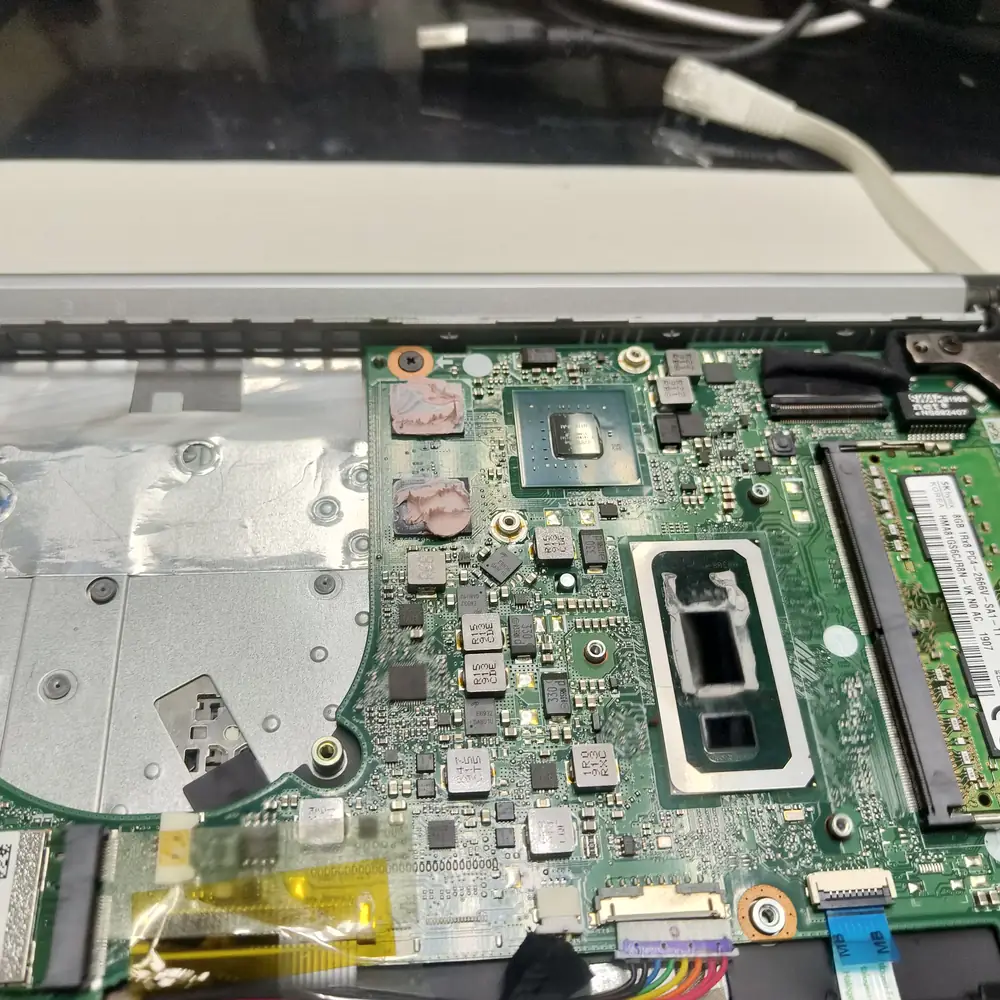
Identify the Bluetooth failure before changing settings
Bluetooth problems are not all the same. A missing Bluetooth switch suggests Windows may not be seeing the adapter or its driver. A device that appears but will not pair can have a pairing, range, battery or accessory-state problem. A device that pairs and then disconnects needs a different investigation.
Record the accessory model, Windows version, when the problem started, whether other Bluetooth devices work, and whether the same accessory works with a phone or another computer. This simple comparison helps separate the PC from the accessory.
| What you see | What it may indicate | First check |
|---|---|---|
| Bluetooth toggle is missing | Adapter detection, driver, firmware or radio state | Restart Windows and check Bluetooth in Device Manager. |
| One device will not pair | Accessory pairing mode, stored pairing or compatibility | Charge the accessory, put it in pairing mode and test another host. |
| Devices repeatedly disconnect | Range, interference, power management or driver behavior | Test nearby without a dock or other unnecessary wireless devices. |
| Headphones connect but have no sound | Windows selected a different playback output | Choose the intended output device in Sound settings. |
Start with low-risk checks
Turn Bluetooth off and back on in Settings, make sure Airplane mode is not preventing wireless connections, and restart the PC. Charge the accessory and follow its documented pairing-mode procedure; many devices are not discoverable simply because they are powered on.
Move the accessory close to the computer for the test and temporarily remove avoidable obstacles or nearby sources of wireless interference. If the device pairs with another computer or phone but not this PC, focus next on Windows. If it fails everywhere, check the accessory's own instructions before changing the PC.
- Save open work and restart Windows rather than only waking it from sleep.
- Confirm Bluetooth is enabled and the accessory has charge.
- Check the accessory's manufacturer instructions for pairing or reset mode.
- Test one accessory at a time and note whether other Bluetooth devices work.
If Bluetooth is missing from Settings
Open Device Manager and look for a Bluetooth category or a device with a warning symbol. A missing category is evidence that Windows is not presenting a normal Bluetooth adapter entry; it does not by itself prove the physical radio has failed.
Install Windows updates and any applicable optional driver updates, then use the support page for the exact PC or adapter model if the problem remains. Avoid generic third-party driver-updater utilities. They can install an unrelated package and make it harder to determine which change caused the result.
- If Bluetooth disappeared after a driver or Windows update, record the update date and check whether the PC manufacturer provides a known-good adapter driver.
- If the adapter appears with an error code, write down the code before uninstalling or changing the driver.
- If it is a USB Bluetooth adapter, test a direct USB port rather than a hub, then compare with another computer if possible.
If pairing works but the connection keeps dropping
Forget and pair the accessory again only after confirming that you know how to put it back into pairing mode. Test one device at close range and disconnect unused docks or adapters temporarily. If only one accessory drops, its firmware, battery, multipoint behavior or compatibility may be involved; if several Bluetooth devices fail on the same PC, investigate the PC's adapter and driver.
Some adapter drivers expose a power-saving option, but not every Windows device offers the same setting. If you change one, record the original state and test again. Do not disable unrelated power-management settings wholesale.
Know when to stop
Do not reset Windows just because Bluetooth is unreliable. First preserve the exact error, test another accessory or host, and use drivers from the adapter or PC maker. If the adapter repeatedly vanishes across restarts and a supported driver, or the PC has suffered liquid or physical damage, model-specific hardware diagnosis may be needed.
A Bluetooth connection failure and a general internet outage are separate problems: Bluetooth is a short-range device connection, not the Wi-Fi network connection used to reach the internet.
This symptom-led guide is based on Microsoft's published Windows Bluetooth troubleshooting guidance. It does not claim that every cause was reproduced on one PC; Bluetooth hardware, driver packages and accessory behavior vary by model. Prefer the PC or accessory manufacturer's instructions for model-specific steps.
See the evidence behind this topic
These TWW research pieces examine the measurements, mechanisms, or testing questions related to this guide. Research pages distinguish measured results from general technical guidance.
- Windows Shows 100% Disk Usage but Very Low MB/s: What Is Actually Happening?100% active time is not the same thing as 100% storage bandwidth. The difference is the key to diagnosing many Windows disk complaints.
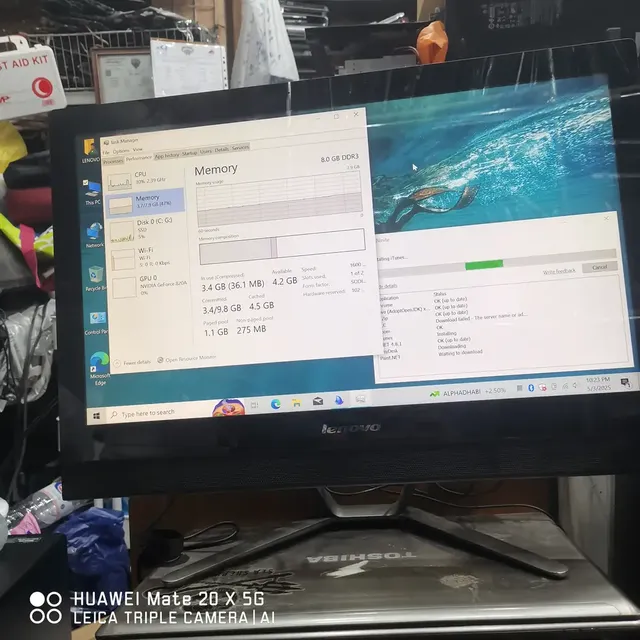
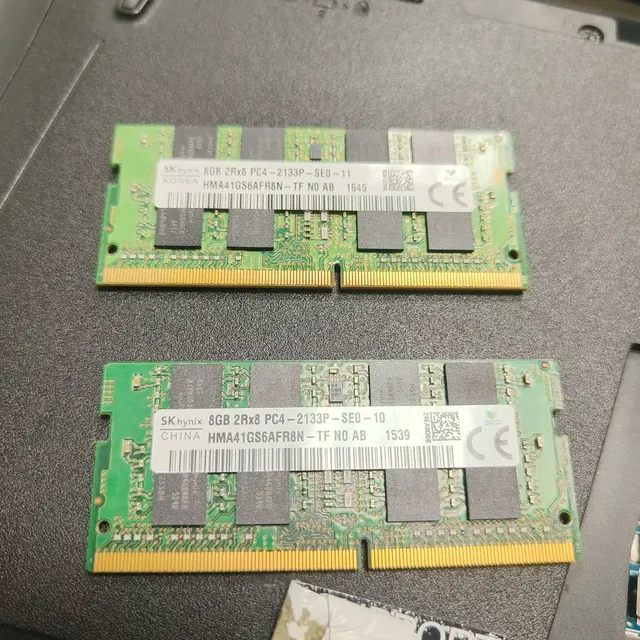
- Does More RAM Actually Make Windows Faster? What to Measure Before UpgradingYes—when memory capacity is the bottleneck. If Windows already has enough memory for the workload, adding more RAM may make little or no measurable difference.
Sources & further reading
Frequently asked questions
Why is the Bluetooth toggle missing in Windows 11?
Windows may not be detecting the adapter normally, or its driver, radio state or firmware may be involved. Check Device Manager and the PC maker's driver guidance before assuming the adapter is broken.
Why does Bluetooth keep disconnecting?
Possible causes include range, accessory battery or firmware, interference, adapter drivers and power behavior. Test one device close to the PC before making broader changes.
My Bluetooth headphones are connected but there is no sound. Is Bluetooth broken?
Not necessarily. Windows may be using another playback device or the app may have a different output selected. Check Sound settings and the app's audio output first.
Should I download a Bluetooth driver updater?
No. Use Windows Update and the exact PC or adapter manufacturer's support page. Generic updater tools add another variable and may install an unsuitable driver.
We distinguish documented facts, measured results, and informed guidance. If a claim depends on a specific device, software version, game, or test method, that context should be stated rather than implied.
Meet the author·See our testing methodology·Read our editorial policy