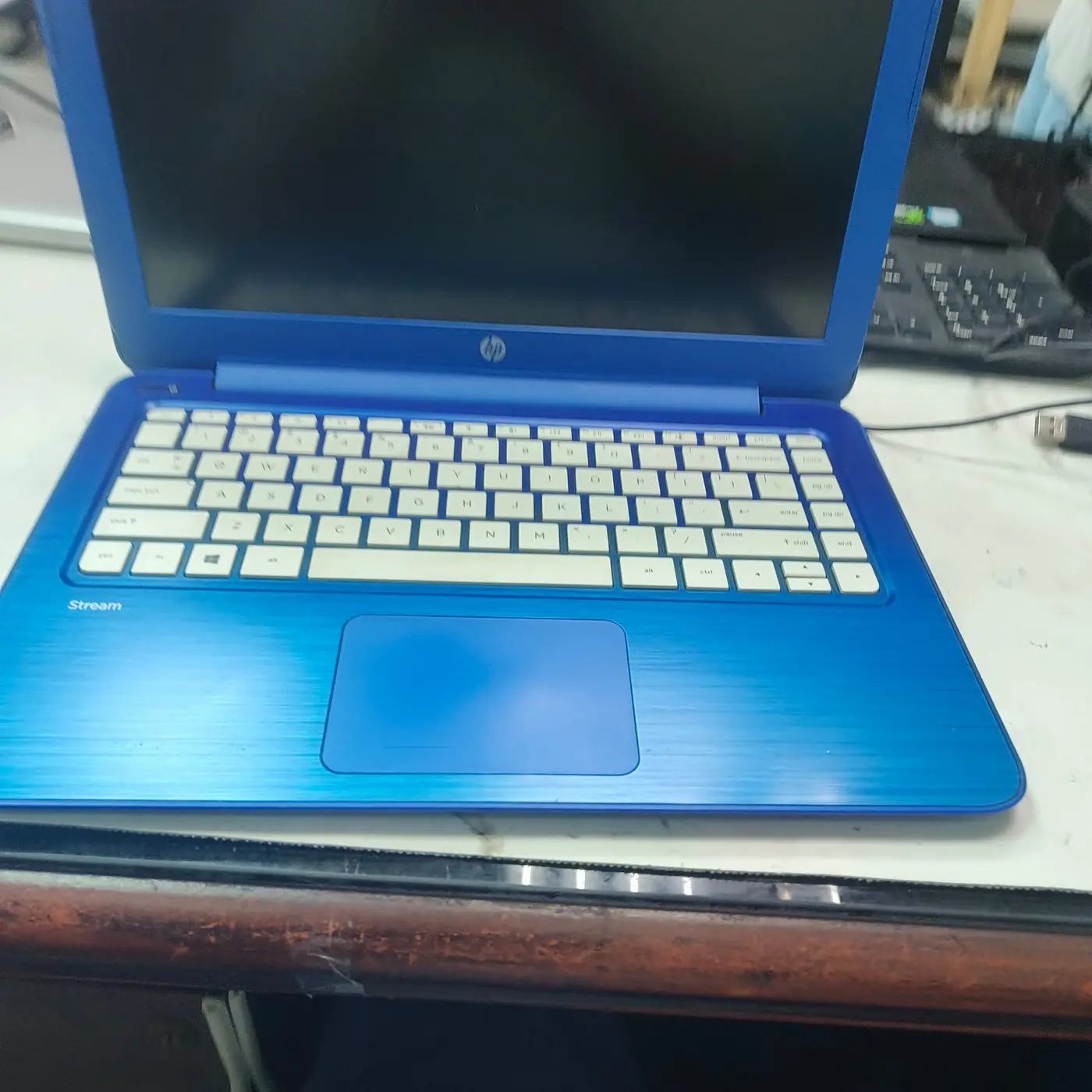
Identify what has stopped working
A touchpad problem can mean the pointer will not move, clicks do not register, scrolling or multi-finger gestures have stopped, or the touchpad disappears from Settings. A gesture-only failure is not the same as a device that Windows no longer detects.
If the touchpad stopped after connecting a mouse, pressing a function key, installing an update or waking from sleep, note that timing. Connect a known-good USB mouse if available so you can navigate Settings and Device Manager without repeatedly pressing touchpad shortcuts.
| Symptom | Possible area | First check |
|---|---|---|
| Pointer does not move at all | Touchpad disabled, hotkey, driver or hardware | Check Settings and the model-specific touchpad/function-key toggle. |
| Pointer works but taps or clicks fail | Click/tap settings, surface condition or driver | Test physical click and review touchpad settings. |
| Basic movement works but scrolling or gestures fail | Gesture configuration or precision-touchpad support | Review available gesture settings and whether the hardware supports them. |
| Touchpad is absent from Settings or Device Manager | Driver, firmware setting or hardware detection | Check Device Manager and the laptop maker's support instructions. |
| Touchpad stops only when a mouse is connected | External-mouse preference | Review whether the device is configured to disable the touchpad when a mouse is attached. |
Check the touchpad settings and hardware toggle
In Windows 11, open Settings > Bluetooth & devices > Touchpad. In Windows 10, the page is generally under Settings > Devices > Touchpad. Confirm the touchpad is enabled and inspect the options for taps, scrolling and gestures. Names and available switches vary by device and driver.
Some laptops have a function-key shortcut or a dedicated touchpad toggle. Look for the touchpad symbol on the keyboard and consult the laptop manufacturer's manual for the correct key combination. Do not assume the same Fn shortcut applies to every laptop brand or model.
If the touchpad stops only when a USB or Bluetooth mouse is connected, look for an option that keeps the touchpad enabled when a mouse is attached. If only multi-finger gestures fail, confirm that the device supports those gestures; not all touchpads expose the same features.
- Connect an external mouse if you need a reliable way to navigate.
- Open the Touchpad settings page and confirm the touchpad is enabled.
- Check the model-specific function key or hardware toggle.
- Test pointer movement, taps, physical clicks and scrolling separately.
- If the problem affects only gestures, inspect their settings rather than reinstalling the whole device.
Check whether Windows detects the touchpad
Open Device Manager and look under Human Interface Devices and Mice and other pointing devices. The exact device name depends on the manufacturer. If the touchpad is listed with a warning symbol, record the message or error code before changing its driver.
If it is missing, check whether a firmware/BIOS option or manufacturer utility can disable the touchpad, and install relevant Windows updates. If the device still does not appear, use the laptop maker's model-specific support route; a missing entry alone cannot tell you whether the cause is firmware, a driver or physical hardware.
- Record the laptop's exact model and Windows version.
- Check for a device status/error code in Device Manager.
- Use the support page for the exact model rather than an unrelated driver package.
- If the touchpad failed after a hardware repair, liquid exposure or impact, stop assuming that a software setting is the only possible cause.
Update or reinstall the correct driver
Microsoft recommends Windows Update as the preferred starting point for touchpad driver updates. Check optional driver updates if they are offered for your device, then restart and retest. You can also inspect the touchpad entry in Device Manager to see whether Windows exposes an update option.
If updating does not help, reinstalling the device driver through Device Manager may help Windows reload the appropriate driver after restart. Before uninstalling anything, make sure you have another way to control the laptop and a working internet connection. On some systems the touchpad driver is supplied by the laptop manufacturer, so follow the official model-specific instructions.
If the problem began immediately after a driver update and a supported rollback option is available, record the current version and consider testing the previous version. Change one variable at a time and check whether pointer behavior improves.
- Install available Windows updates and restart.
- Check the laptop manufacturer's support page for the correct touchpad or chipset package.
- Use Device Manager's update or reinstall workflow only for the identified device.
- Restart, then test the same movement, click and gesture patterns.
- If the driver is not detected or the touchpad remains absent, contact the manufacturer or arrange hardware diagnosis.
When not to keep troubleshooting in Windows
If the touchpad is physically damaged, has been exposed to liquid, or stopped working immediately after the laptop was opened for repair, power down if there are signs of electrical damage and seek qualified service. A loose internal cable or failed touchpad assembly cannot be ruled in or out from Settings alone.
Do not open the laptop or disconnect internal parts solely to test a touchpad unless you have the correct service instructions and understand the battery and warranty risks. Keep a backup of important data before invasive repair work.
Bottom line
Check the touchpad's enabled state, the manufacturer's hardware toggle and the exact symptom first. Use Windows Update or the laptop maker's official driver package before more invasive steps, and escalate if the device is not detected or physical damage is possible.
This guide follows Microsoft's published touchpad troubleshooting and driver guidance. Function-key combinations and advanced touchpad controls differ between laptop manufacturers; use the exact model's support instructions for those controls.
See the evidence behind this topic
These TWW research pieces examine the measurements, mechanisms, or testing questions related to this guide. Research pages distinguish measured results from general technical guidance.
- Windows Shows 100% Disk Usage but Very Low MB/s: What Is Actually Happening?100% active time is not the same thing as 100% storage bandwidth. The difference is the key to diagnosing many Windows disk complaints.
- Does More RAM Actually Make Windows Faster? What to Measure Before UpgradingYes—when memory capacity is the bottleneck. If Windows already has enough memory for the workload, adding more RAM may make little or no measurable difference.
Sources & further reading
Frequently asked questions
Why is my laptop touchpad missing from Settings?
Windows may not be detecting the device, or its driver, firmware setting or hardware may be involved. Check Device Manager and the exact laptop manufacturer's support instructions.
Can a function key disable a laptop touchpad?
Some laptops provide a keyboard shortcut or dedicated touchpad toggle. The correct key combination varies by model, so use the manufacturer's manual.
Should I uninstall the touchpad driver?
Not as the first step. Check settings, Windows Update and the correct manufacturer driver first. Before reinstalling, make sure you have another way to control the laptop.
Why does the touchpad move the pointer but gestures do not work?
Gestures may be disabled, configured differently, or unsupported by the touchpad hardware. Check the available gesture settings before assuming the driver is broken.
We distinguish documented facts, measured results, and informed guidance. If a claim depends on a specific device, software version, game, or test method, that context should be stated rather than implied.
Meet the author·See our testing methodology·Read our editorial policy