Separate a monitor's No Signal message from a Windows detection problem
A monitor that says No Signal may be powered on but receiving no usable video input. A monitor that works but is absent from Windows Display settings points toward a detection or connection path problem. A detected display that remains black may instead be in the wrong display mode, on an unsupported resolution or refresh rate, or connected to a port that is not producing the expected output.
Record the PC model, graphics card if it is a desktop, monitor model, cable type and whether the screen worked before a recent update, dock change or hardware move.
| What you see | First area to test | Avoid doing first |
|---|---|---|
| Monitor says No Signal | Power, selected input, cable and output port | Changing Windows resolution before confirming a signal path. |
| Monitor is missing in Display settings | Connection, supported output, dock and Detect | Assuming the monitor or GPU has failed. |
| Screen is detected but black | Windows+P mode, input, resolution and refresh rate | Repeatedly installing different graphics drivers. |
| Works directly but not through a dock | Dock firmware, power, bandwidth and cable compatibility | Assuming every USB-C port or dock supports video. |
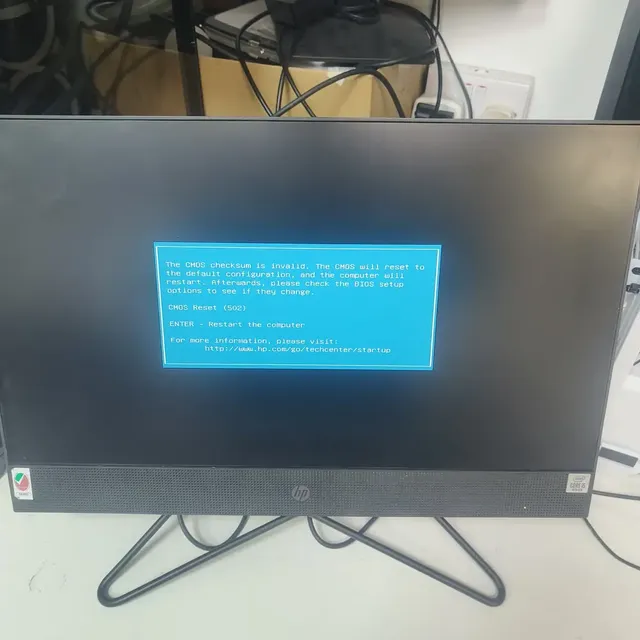
| PC has no picture on any display at startup | Startup/POST and hardware diagnostics | Treating it as only a Windows multi-monitor setting. |
Check the monitor, input and cable first
Confirm the monitor power light is on and manually select the input that matches the cable, such as HDMI or DisplayPort. Reseat both ends of the cable. If possible, test a known-working cable and one display connection at a time; adapters and docks add more potential failure points.
For the first test, connect the monitor directly to the computer and temporarily remove the dock or adapter. If the screen works directly, the monitor and basic cable path are more likely to be functional, and the next investigation should focus on the dock, adapter, power supply or compatibility.
- Turn on the monitor and select the correct physical input.
- Reseat the cable and test a known-working cable if available.
- Connect directly to the PC without a dock or adapter for comparison.
- Test the monitor with another device, or test the PC with another monitor, if practical.
Ask Windows to detect and use the display
In Windows 11, open Settings > System > Display, expand Multiple displays, and select Detect. Use the Windows key + P shortcut to choose Duplicate, Extend, PC screen only or Second screen only. If the monitor is detected, select Identify and arrange the numbered displays to match their physical positions.
If you use a wireless display, follow its separate connection workflow rather than treating it as a wired HDMI or DisplayPort issue. Restart Windows after simplifying the connection if the system has just been docked or undocked.
Check the computer's actual video-output capability
A physical connector does not guarantee every display mode. On some desktop PCs with a dedicated graphics card, the monitor should be connected to the graphics card's video outputs rather than an inactive motherboard output. The correct arrangement depends on the CPU, motherboard firmware and graphics configuration.
USB-C is especially model-dependent: some ports support DisplayPort Alt Mode, Thunderbolt or another video-capable configuration, while others are data-only. Confirm the exact PC and dock specifications rather than buying an adapter based only on the connector shape.
- Test a direct HDMI or DisplayPort connection before troubleshooting USB-C docks.
- Check the manufacturer's port diagram and supported maximum display count/resolution.
- For multi-monitor docks, verify the dock's power adapter, firmware and operating-system requirements.
When to investigate graphics drivers and display settings
If the display previously worked and the failure began after a graphics driver update, note the driver version and review the GPU or computer manufacturer's troubleshooting advice. Windows Update may provide a relevant driver, but avoid installing multiple packages without testing between changes.
If Windows detects the screen, choose a supported resolution and refresh rate. A short-lived display-driver reset using Windows key + Ctrl + Shift + B may help diagnose a temporary graphics-stack issue, but it is not a substitute for checking the signal path or diagnosing a persistent hardware fault.
Stop if the port or hardware appears damaged
Do not force a connector, use visibly damaged cables, or repeatedly reconnect a port that is loose, hot or physically damaged. If no display works during startup, the problem may extend beyond Windows settings. Record the connection path and any diagnostic LEDs or error codes before seeking model-specific support.
This guide uses Microsoft's documented multiple-display workflow and common connection-isolation principles. Display output support depends on the specific GPU, port, cable, dock and computer model. It does not claim that every USB-C port carries video or that every dock supports every display configuration.
See the evidence behind this topic
These TWW research pieces examine the measurements, mechanisms, or testing questions related to this guide. Research pages distinguish measured results from general technical guidance.
- Windows Shows 100% Disk Usage but Very Low MB/s: What Is Actually Happening?100% active time is not the same thing as 100% storage bandwidth. The difference is the key to diagnosing many Windows disk complaints.
- Does More RAM Actually Make Windows Faster? What to Measure Before UpgradingYes—when memory capacity is the bottleneck. If Windows already has enough memory for the workload, adding more RAM may make little or no measurable difference.
Sources & further reading
Frequently asked questions
Why does Windows not detect my second monitor?
Common possibilities include an incorrect monitor input, bad cable, unsupported output path, dock issue, Windows display mode or graphics-driver problem. Simplify to a direct connection and then use Display settings > Detect.
Why does my monitor say No Signal?
The monitor is not receiving a usable video signal on its selected input. Check its source setting, cable and PC output before changing Windows resolution.
Does every USB-C port support an external monitor?
No. Video capabilities depend on the exact PC port and its supported standards. Check the computer's specifications and dock requirements.
My PC has no picture on any monitor. Is this the same problem?
Not necessarily. If there is no startup image on any display, investigate power-on and hardware initialization as well as the screen connection. See the PC no-display guide.
We distinguish documented facts, measured results, and informed guidance. If a claim depends on a specific device, software version, game, or test method, that context should be stated rather than implied.
Meet the author·See our testing methodology·Read our editorial policy