What Microsoft says changed
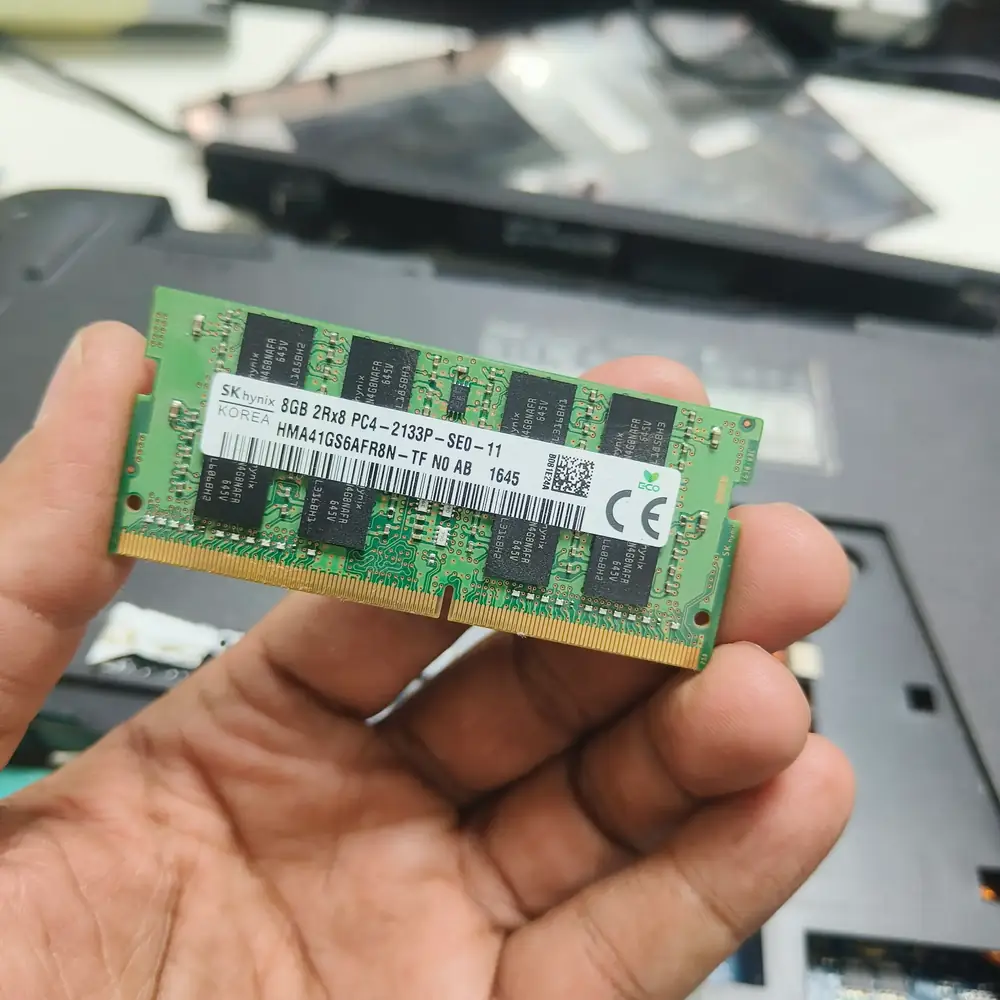
In an October 15, 2026 Windows Experience Blog post, Microsoft said Windows 11 is becoming more responsive and described memory-efficiency work intended to help PCs keep more resources available for what people are actively doing. The company says the changes can be especially meaningful on systems with 8GB of RAM.
The announcement covers several related but different improvements: selected Windows interface actions responding faster, less background memory being used by Widgets on lower-memory PCs, and more active data staying in RAM instead of being moved to slower storage.
- On PCs with 8GB of RAM or less, the Widgets board loads when opened instead of preloading in the background; Microsoft says this can make more than 200MB available for other work.
- Windows can keep up to 2GB more active data in memory rather than moving it to slower storage. This is not a 2GB increase in installed RAM.
- Microsoft describes the overall Windows experience as up to 20% more responsive, with results varying by device, configuration and usage.
The 20% figure measures selected responsiveness
Microsoft’s published comparison uses Windows 11 build 26300.9550 against build 26200.7628. The named measurements cover response times for Search, Start, the right-click menu, Settings, Snipping Tool and File Explorer.
That is a limited set of interface interactions, not a universal speed score. It does not establish that every app launches 20% faster, that games gain 20% more frames per second, or that all 8GB laptops will feel the same improvement. Microsoft has not published a complete hardware-by-hardware breakdown or per-action results in the announcement.
The 200MB and 2GB figures describe different things
The Widgets change is a background-memory saving: by waiting until the Widgets board is opened, Windows can leave more than 200MB available for other tasks on devices with 8GB of RAM or less.
The “up to 2GB more” statement is about keeping more active data in physical memory rather than paging it to slower storage. It is not the amount of RAM freed by Widgets, a fixed reduction in Task Manager’s “In use” number, or a replacement for physical memory.
These figures should not be added together or treated as a guaranteed 2.2GB reduction in RAM use. They describe different parts of Microsoft’s memory-efficiency work and depend on the device and workload.
Independent testing is mixed, and the results are not directly comparable
Windows Latest’s October 17 report described mixed results from its early checks: one 16GB laptop used about 2GB less memory after updating, while an 8GB PC it tested showed little change and remained near 96% memory use.
In a follow-up published October 21, the outlet tested an 8GB laptop before and after moving from Windows 11 25H2 build 26200.9550 to 26H2 build 26300.9711. After a fresh restart, its reported memory in use fell from about 5.0GB to 3.7GB, with 4.2GB available. The writer also said they did not run a formal performance benchmark and described the improvement in switching between apps as a personal observation.
The same follow-up included a virtual-machine comparison between a 25H2 build from 2025 and a 2026 26H2 build. Because that comparison spans many months of updates, it cannot isolate the effect of the October memory changes. These small tests are useful context, but they do not establish a universal result for every device.
What 8GB laptop owners should do now
Install the updates offered to your PC through Settings > Windows Update, then check the installed Windows version with the winver command. Microsoft is rolling changes out through Windows servicing, so timing and availability can vary. Do not force a major feature update solely to chase a memory claim if Windows Update is not offering it to your device.
To compare your own results, use the same routine before and after restarting. Open Task Manager with Ctrl+Shift+Esc, select Performance, then Memory. Record “In use,” “Available” and “Committed” after startup and again with your normal apps open. Repeat the same workload instead of comparing unrelated sessions.
A high memory percentage by itself is not proof of a fault. Look for a repeatable combination of low available memory, sustained paging or disk activity, and the slowdowns you are trying to solve. Close or disable only apps and startup items you recognize and do not need.
- Install the updates Windows Update offers and check the current release-health notes if the update is not available.
- Restart, wait for startup activity to settle, and record memory values in Task Manager.
- Repeat with your normal browser tabs and apps open; compare responsiveness as well as memory numbers.
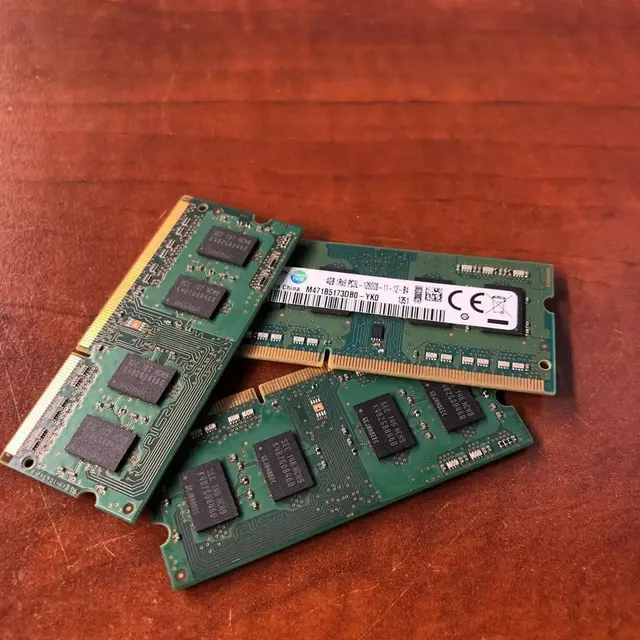
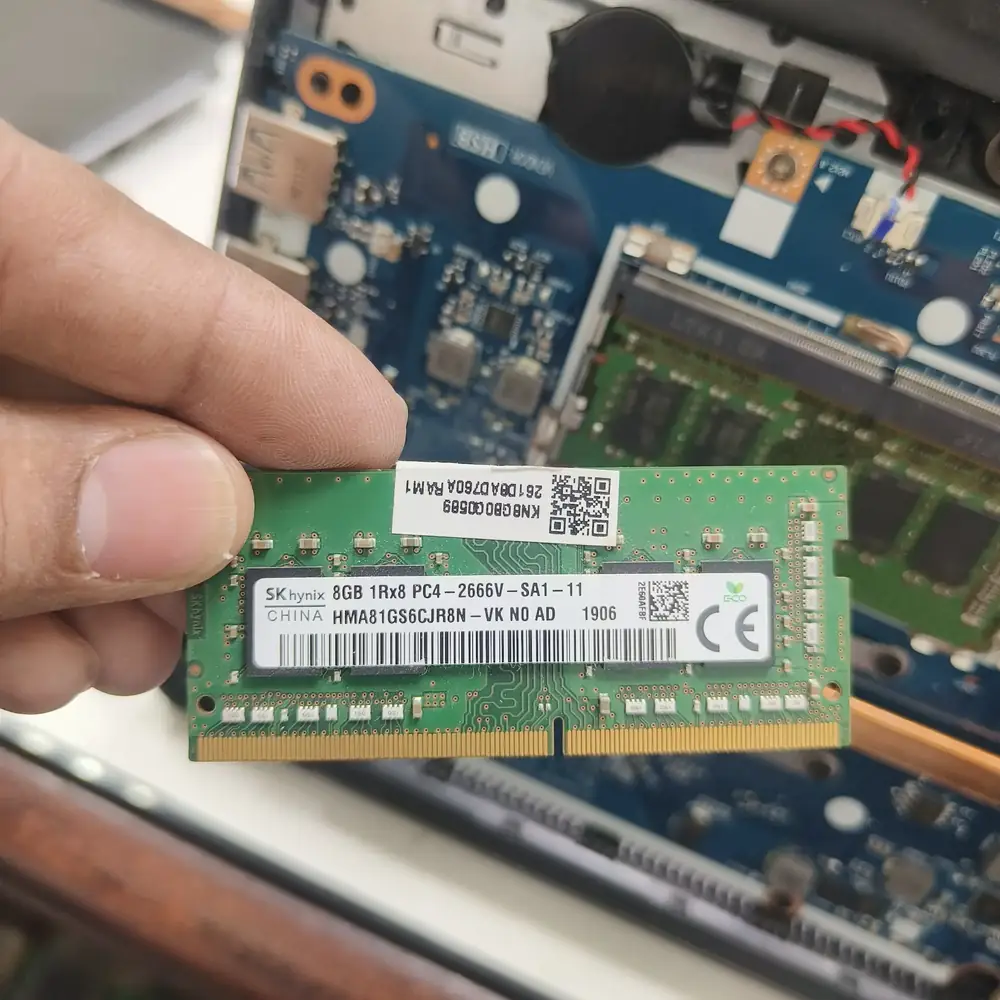
- If memory pressure remains frequent, check whether the exact laptop model supports a RAM upgrade before buying a module.
The takeaway
Microsoft has announced real memory-efficiency and responsiveness work, but the headline numbers need context. The Widgets saving is a specific background-memory change, the 2GB figure concerns active data retained in RAM, and the 20% figure applies to selected responsiveness measurements.
For an 8GB PC, the practical test is whether your usual workload becomes more responsive and whether memory pressure or paging decreases. If it does not, the next step is to identify the limiting process, storage, thermals or hardware configuration rather than assuming every slowdown has one cause.
This is a sourced news explainer based on Microsoft’s public announcement and independent reporting. Tech World Window did not run its own before-and-after benchmark, and the reported test results should not be treated as a controlled comparison across all PCs.
See the evidence behind this topic
These TWW research pieces examine the measurements, mechanisms, or testing questions related to this guide. Research pages distinguish measured results from general technical guidance.
- Windows Shows 100% Disk Usage but Very Low MB/s: What Is Actually Happening?100% active time is not the same thing as 100% storage bandwidth. The difference is the key to diagnosing many Windows disk complaints.
- Does More RAM Actually Make Windows Faster? What to Measure Before UpgradingYes—when memory capacity is the bottleneck. If Windows already has enough memory for the workload, adding more RAM may make little or no measurable difference.
Sources & further reading
- Microsoft Windows Experience Blog: What’s new in Windows 11—everyday experiences, reimagined (October 15, 2026) ↗
- Windows Latest: Up to 20% more responsive—Windows 11’s update and early 8GB/16GB checks (October 17, 2026) ↗
- Windows Latest: Testing Windows 11 26H2 on an 8GB laptop (October 21, 2026) ↗
- Microsoft Learn: Windows 11 release information ↗
Frequently asked questions
Does this update add 2GB of RAM to an 8GB laptop?
No. Microsoft says Windows can keep up to 2GB more active data in RAM instead of moving it to slower storage. The laptop still has the same installed physical memory.
Will every Windows 11 laptop become 20% faster?
No. “Up to 20% more responsive” refers to selected responsiveness measurements. Real results vary by device, configuration, workload and update state.
Does 200MB mean Widgets always used that much RAM?
Microsoft says waiting to load Widgets until the board is opened makes more than 200MB available on PCs with 8GB of RAM or less. Actual memory use and savings depend on the system and its state.
Should I upgrade from 8GB to 16GB?
It depends on your normal workload and whether you see sustained memory pressure or paging. Check the exact model’s upgrade support and compare your own usage before deciding.
We distinguish documented facts, measured results, and informed guidance. If a claim depends on a specific device, software version, game, or test method, that context should be stated rather than implied.
Meet the author·See our testing methodology·Read our editorial policy