What changed with Secure Boot certificates in 2026
Secure Boot helps UEFI firmware verify trusted software in the boot process. Microsoft has been moving Windows devices from older 2011 certificate authorities to replacement 2023 certificates. The 2011 certificates began expiring in June 2026; the Microsoft Windows Production PCA 2011 certificate reached its listed expiry date on 19 October 2026.
An expiration date does not automatically mean that a PC will stop booting on that day. Microsoft says affected devices can continue to start and receive standard Windows updates, but devices without the replacement certificates may not receive future security protections for early-boot components, including relevant boot-manager, Secure Boot database and revocation-list updates.
Most eligible personal devices are expected to receive the updates through Windows Update, but some systems may need a compatible firmware update or model-specific action. Check the status of the actual device rather than assuming it succeeded—or failed—because of its age.
Check the status in Windows Security first
Open Windows Security, select Device security, then open Secure Boot. The current Windows Security experience can display certificate-update status and whether any action is needed. Read the message shown on your device; do not assume every PC has the same labels or rollout state.
If the page says the update is complete and no action is needed, keep Windows and supported firmware current and recheck after future relevant updates. If it says action is needed, follow Microsoft’s instructions for that status and the PC manufacturer’s guidance for the exact model.
- Open Windows Security from the Start menu.
- Choose Device security.
- Open Secure Boot and review the certificate-update status or recommended action.
- Record any explicit error or action message before making changes.
Use a read-only PowerShell check
The Secure Boot command and the certificate-update value answer different questions. Confirm-SecureBootUEFI reports whether Secure Boot is enabled on a supported UEFI computer. It does not prove that replacement certificates have been applied.
Microsoft also documents the UEFICA2023Status value under the Secure Boot Servicing registry key. A value of Updated is a positive Windows-reported certificate-update signal. A missing value, a different value, or an access error should be treated as unresolved evidence—not as permission to edit firmware keys.
Confirm-SecureBootUEFIGet-ItemPropertyValue -Path 'HKLM:\SYSTEM\CurrentControlSet\Control\SecureBoot\Servicing' -Name UEFICA2023Status -ErrorAction SilentlyContinue- Run the check in an elevated PowerShell window if Confirm-SecureBootUEFI reports a privilege error.
- If the command says it is not supported on the platform, the device may be using legacy BIOS or may not expose the UEFI interface needed by this cmdlet.
- For a simpler combined read-only check, use the Secure Boot Status Checker and paste the output yourself. The browser tool cannot read UEFI variables directly.
Interpret the result without guessing
Secure Boot enabled and UEFICA2023Status marked Updated is the clearest positive result from these two checks. Cross-check the Windows Security page for the device’s current recommended action.
Secure Boot enabled with a missing or different certificate status means the certificate update is not confirmed by that output. Check Windows Security, install available Windows updates, restart when prompted, and check again. If Windows still requests action, consult Microsoft and the computer or motherboard maker.
Secure Boot disabled is a separate configuration state. It may be intentional, or the device may have a different firmware setup. Do not enable or disable it blindly, reset Secure Boot keys, or apply generic registry changes based on this result alone.
| Observed output | Interpretation | Next step |
|---|---|---|
| SecureBootEnabled = True; UEFICA2023Status = Updated | Both reported checks look good | Confirm Windows Security does not show an action needed and keep updates current. |
| SecureBootEnabled = True; status missing or different | Secure Boot is enabled, but the certificate update is not confirmed | Check Windows Security, install supported updates and follow OEM guidance if asked. |
| SecureBootEnabled = False | Secure Boot is reported as disabled; certificate state is a separate question | Check the device-specific reason before changing firmware settings. |
| Access denied or privilege error | The status query did not complete | Rerun the check as administrator or use the Windows Security page. |
| Cmdlet not supported on this platform | The command cannot confirm the platform state | Check UEFI support and the exact model’s documentation. |
Before a BIOS or UEFI firmware update
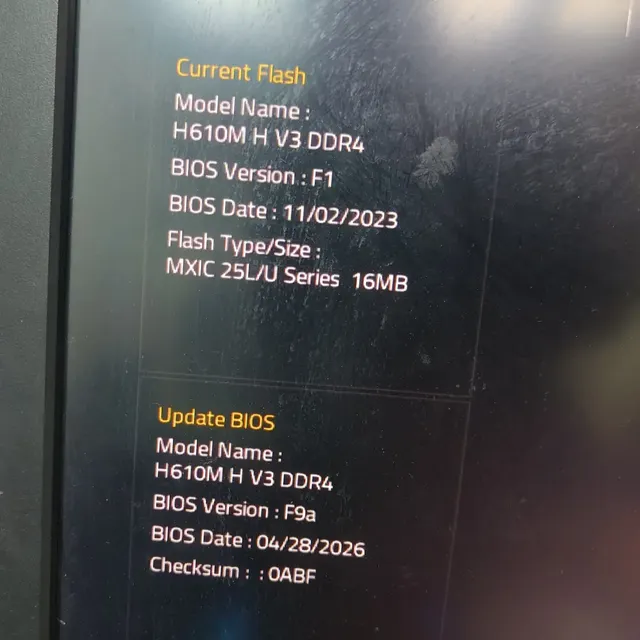
A firmware update can change measurements used by BitLocker or device encryption and may lead Windows to request the recovery key at startup. Before following an OEM firmware procedure, make sure you can access the correct recovery key and back up important files.
Follow the instructions for the exact model and firmware version. Do not clear Secure Boot keys, switch firmware mode, or disable Secure Boot as a generic workaround for certificate expiration. If an OEM explicitly requires a BitLocker step, follow that model-specific procedure rather than a generic command copied from an unrelated PC.
If the status still says action is needed
Keep the device connected to reliable power, install supported Windows updates, restart when prompted, and check the status again. Review the device maker’s support page for a firmware update applicable to the exact model; do not install firmware for a similar-looking model.
If the status remains unresolved, record the manufacturer, model, firmware version, the exact Windows Security message and any relevant event or error details. Share those details with Microsoft or the OEM support channel. On an organization-managed PC, contact IT because update policy and deployment timing may be centrally controlled.
- Do not disable Secure Boot to work around expired certificates.
- Do not clear or manually replace UEFI keys unless the official instructions for the exact device require that operation.
- If a BitLocker recovery screen appears, use the matching recovery key rather than repeatedly changing firmware settings.
This guide follows Microsoft’s published certificate status and PowerShell guidance. The linked checker interprets only text the reader pastes; it does not query firmware or modify the PC.
See the evidence behind this topic
These TWW research pieces examine the measurements, mechanisms, or testing questions related to this guide. Research pages distinguish measured results from general technical guidance.
- Windows Shows 100% Disk Usage but Very Low MB/s: What Is Actually Happening?100% active time is not the same thing as 100% storage bandwidth. The difference is the key to diagnosing many Windows disk complaints.
- Does More RAM Actually Make Windows Faster? What to Measure Before UpgradingYes—when memory capacity is the bottleneck. If Windows already has enough memory for the workload, adding more RAM may make little or no measurable difference.
Sources & further reading
Frequently asked questions
Will my PC stop booting because a 2011 Secure Boot certificate expired?
Not automatically. Microsoft says affected devices can continue to start and receive standard Windows updates, but may miss future security protections for early-boot components until the replacement certificates are applied.
Does SecureBootEnabled = True prove the 2023 certificates are installed?
No. Confirm-SecureBootUEFI checks whether Secure Boot is enabled. UEFICA2023Status is a separate Windows-reported certificate-update signal, and Windows Security should also be checked.
What does UEFICA2023Status = Updated mean?
It is a positive Windows-reported certificate-update status. Confirm Windows Security does not request further action and keep the device updated; it is not a complete audit of every firmware trust setting.
Should I disable Secure Boot if the certificate update is incomplete?
No. Disabling Secure Boot reduces boot-level protection and is not the recommended workaround. Check Windows Security, install supported updates, and follow Microsoft's and the OEM's instructions for the exact device.
Can the checker read my computer automatically?
No. A browser page cannot directly query local UEFI firmware. You run the read-only PowerShell command yourself and paste its output; the tool interprets that text in your browser.
We distinguish documented facts, measured results, and informed guidance. If a claim depends on a specific device, software version, game, or test method, that context should be stated rather than implied.
Meet the author·See our testing methodology·Read our editorial policy